
PanPhyTrack · User guide
From a video to motion data
Follow one bouncing-ball clip from import to a CSV or PanPhyPlot sheet you can graph.
Your first track
Work through these five steps in order. Screenshots match your theme; select one to enlarge it here.
Step 1 of 5
Open the sample video
- Open PanPhyTrack in a new tab, so you can keep this guide beside it.
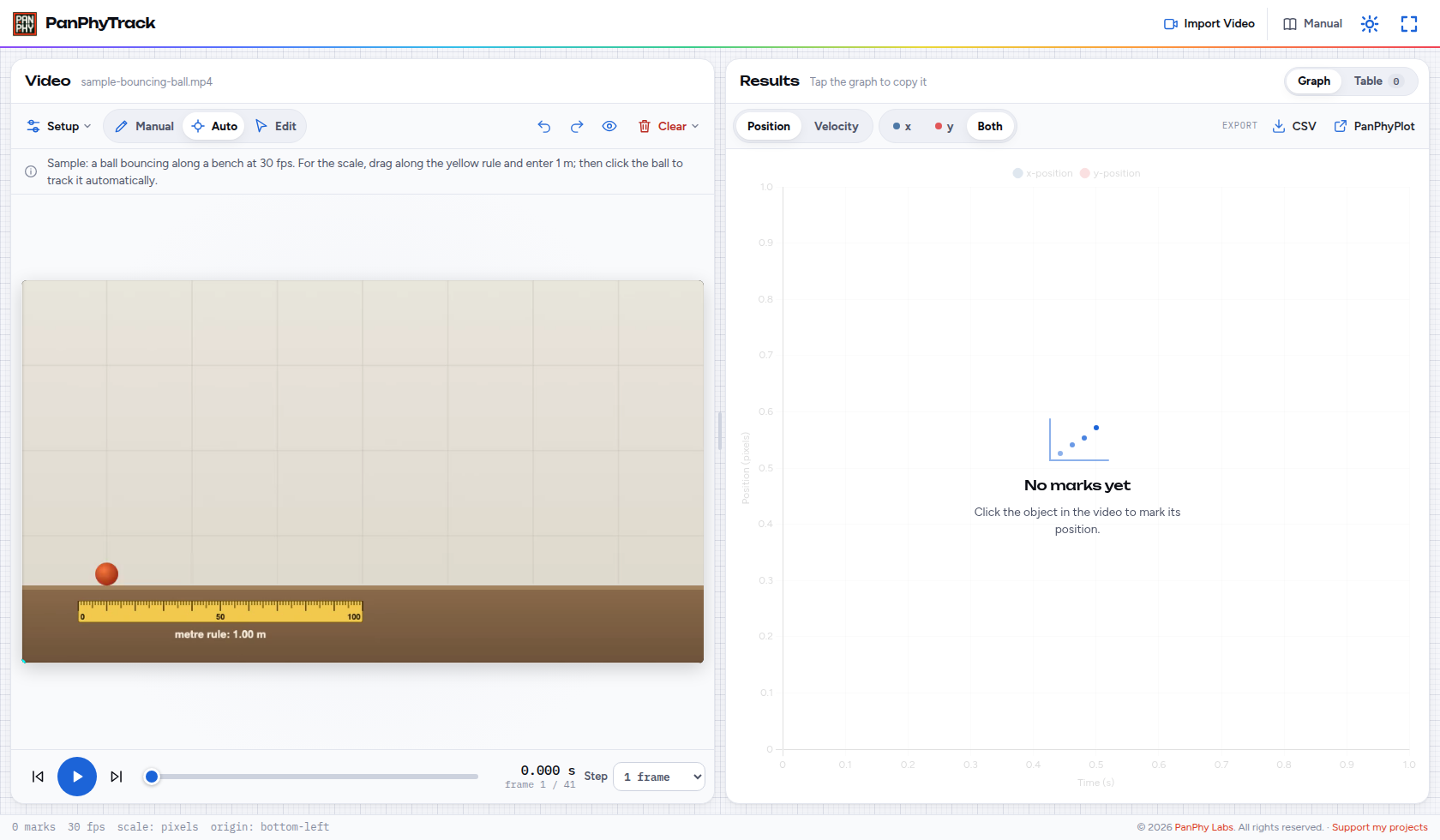
- On the empty start screen, choose Try a sample. The clip shows a ball bouncing along a bench with a meter rule in view.
- Confirm Auto is selected in the tracking tools. Frame rate is detected for you; for your own slow-motion clips, open Setup → Frame rate and enter the filming rate.
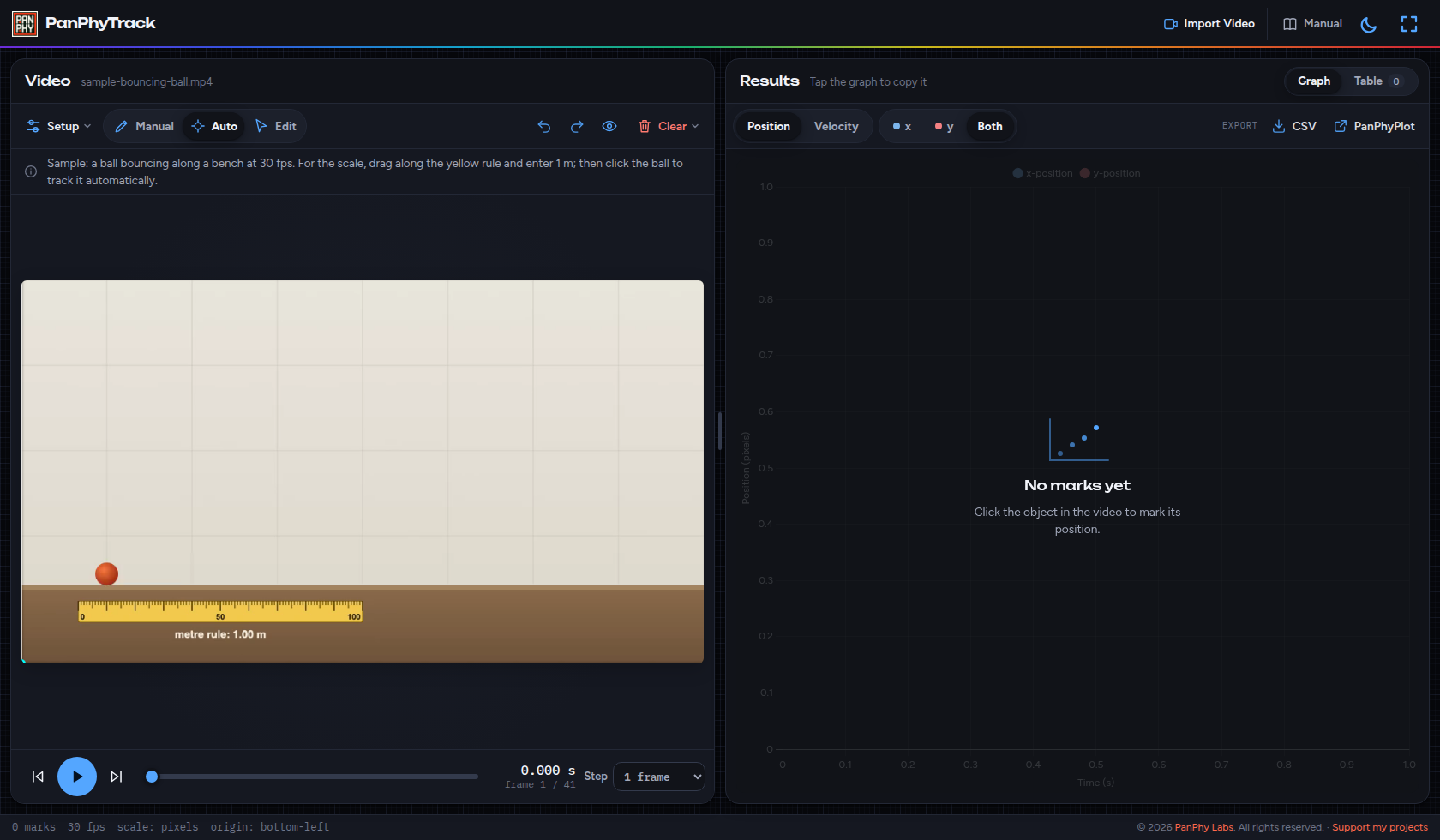
The video fills the left pane. The Results pane waits for marks. A meter rule lies along the bench for the next step.
 Enlarge screenshot
 Enlarge screenshot
Step 2 of 5
Set the scale
- Choose Scale in Setup.
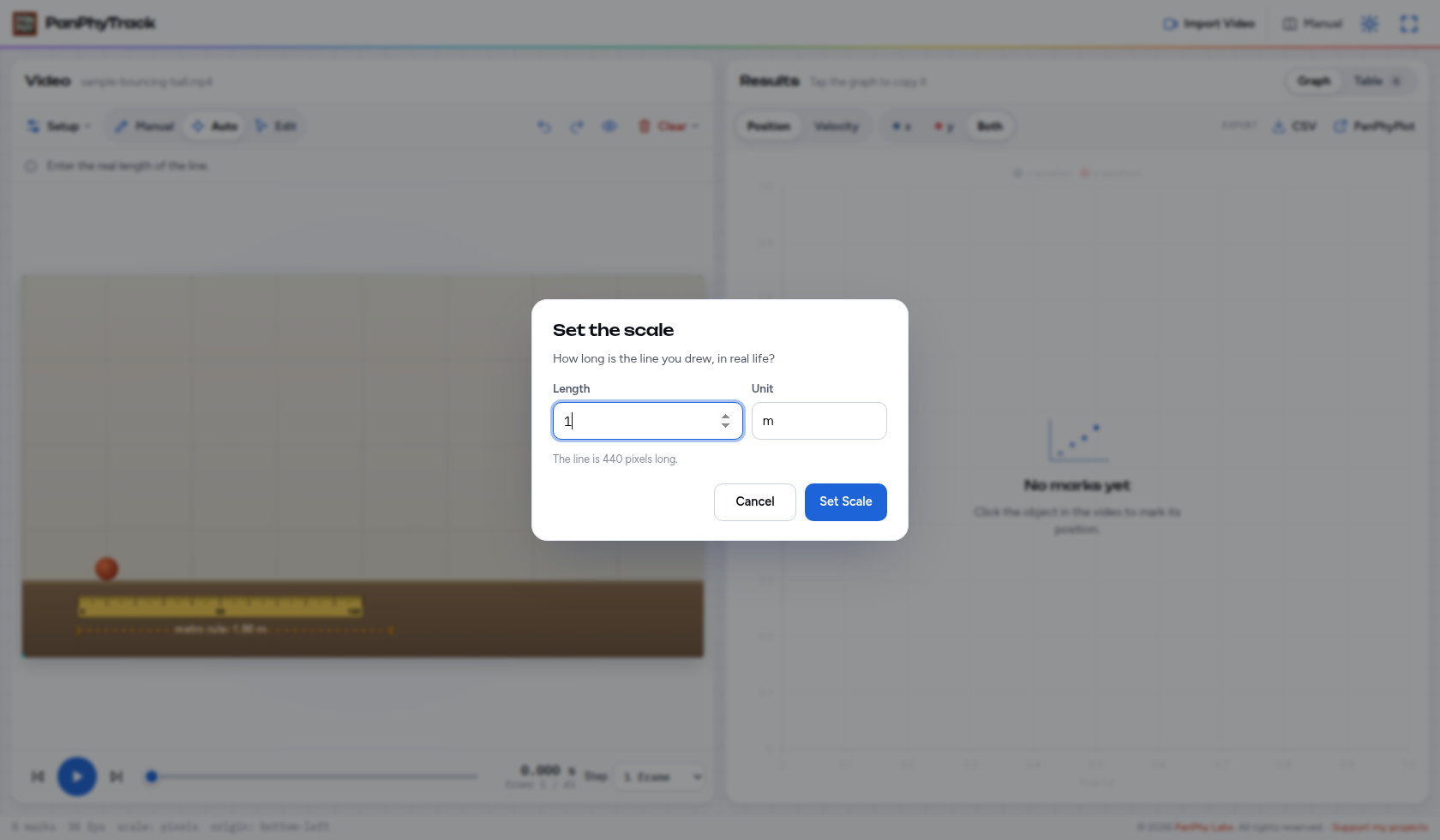
- Drag along the meter rule in the video (or another object of known length).
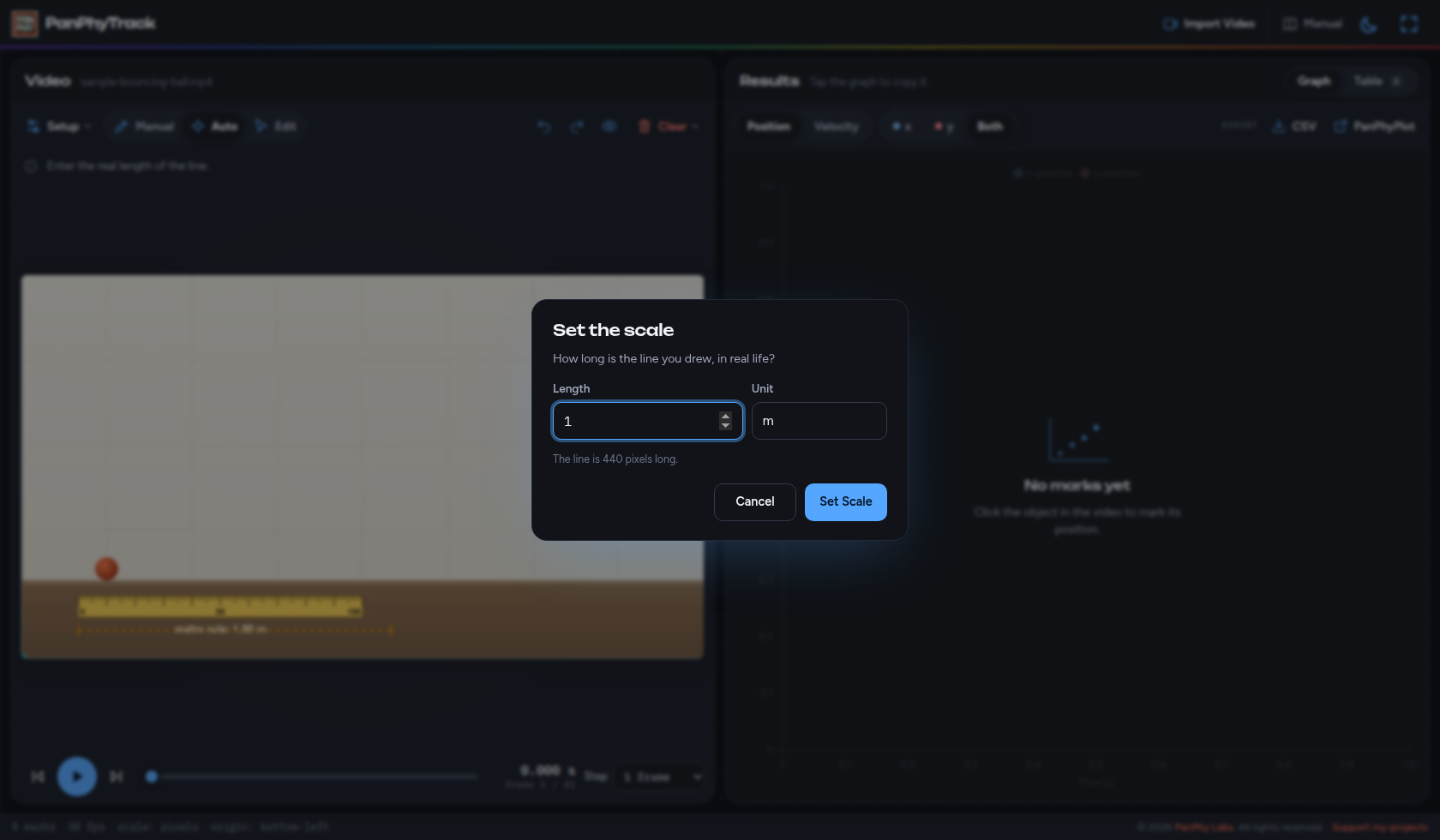
- Type the real length, for example
1with unit m, and confirm.
Positions use meters instead of pixels. Without a scale, the axes stay in pixels — fine for practice, not for a lab report.
 Enlarge screenshot
 Enlarge screenshot
Step 3 of 5
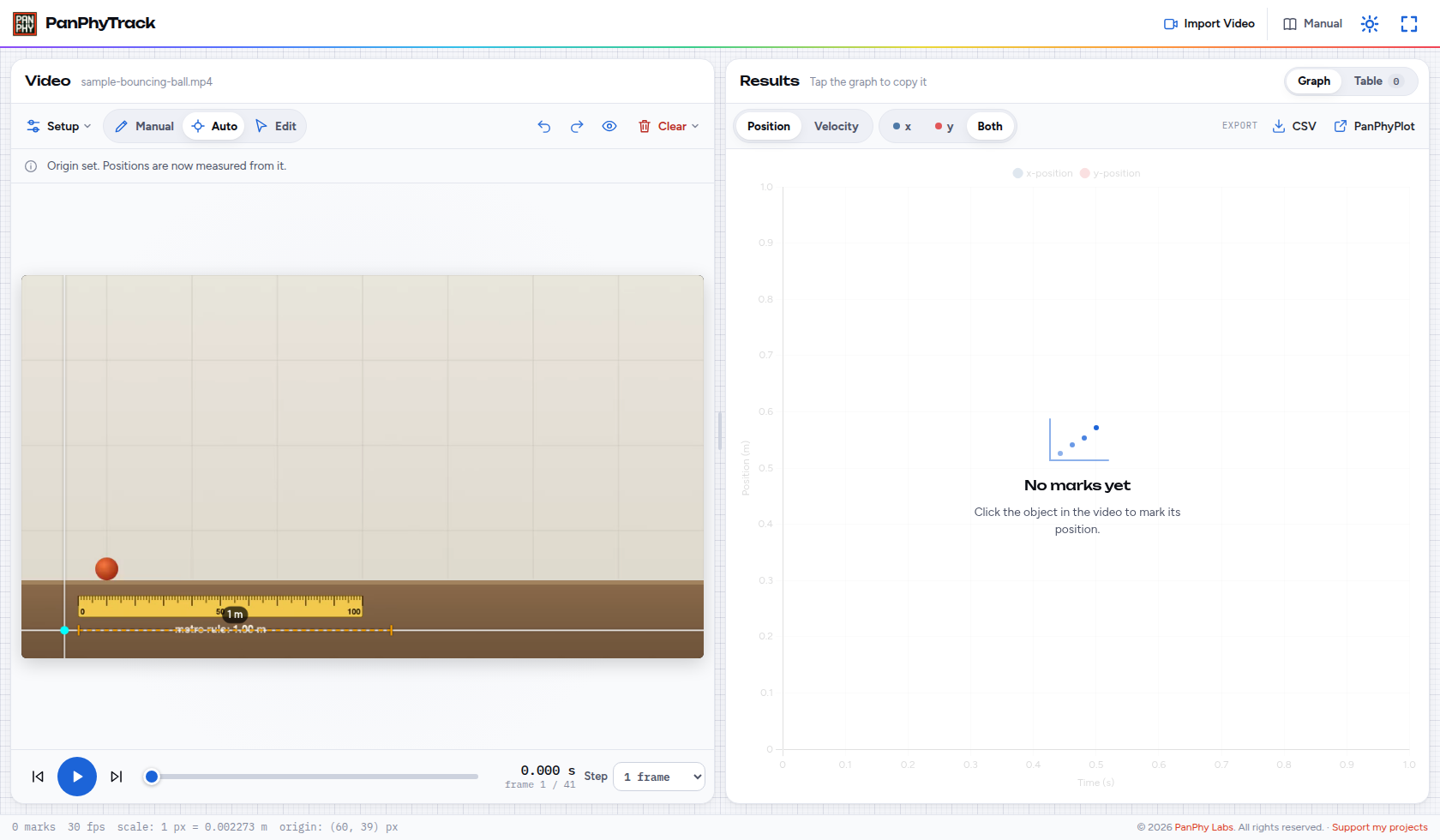
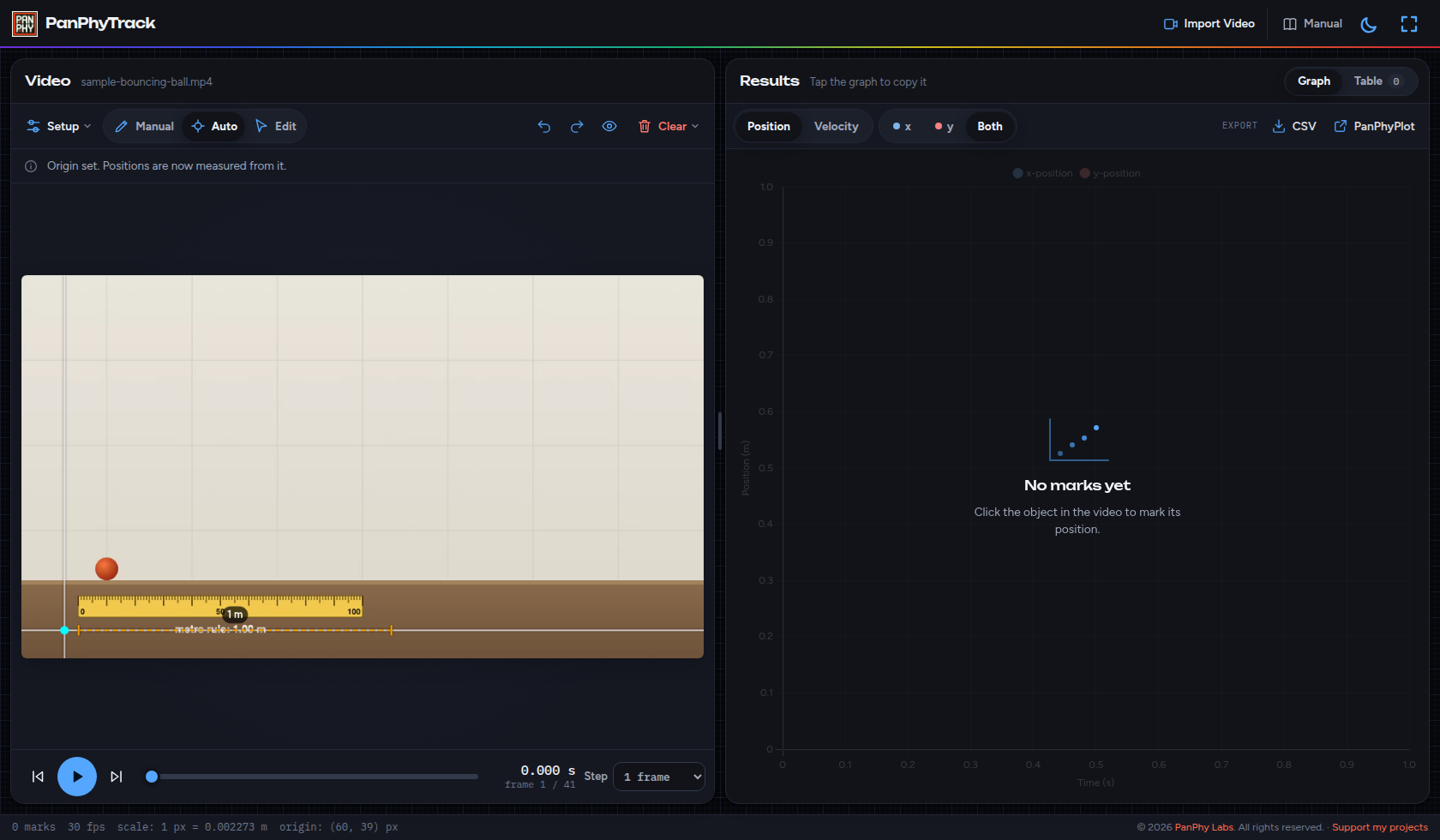
Choose the origin
- Choose Origin in Setup.
- Click where x and y should be zero — often the start of the motion or a corner of the apparatus.
- If you skip this, the origin stays at the bottom-left of the frame.
A cross marks the origin. Later x and y values are measured from that point.
 Enlarge screenshot
 Enlarge screenshot
Step 4 of 5
Track the ball
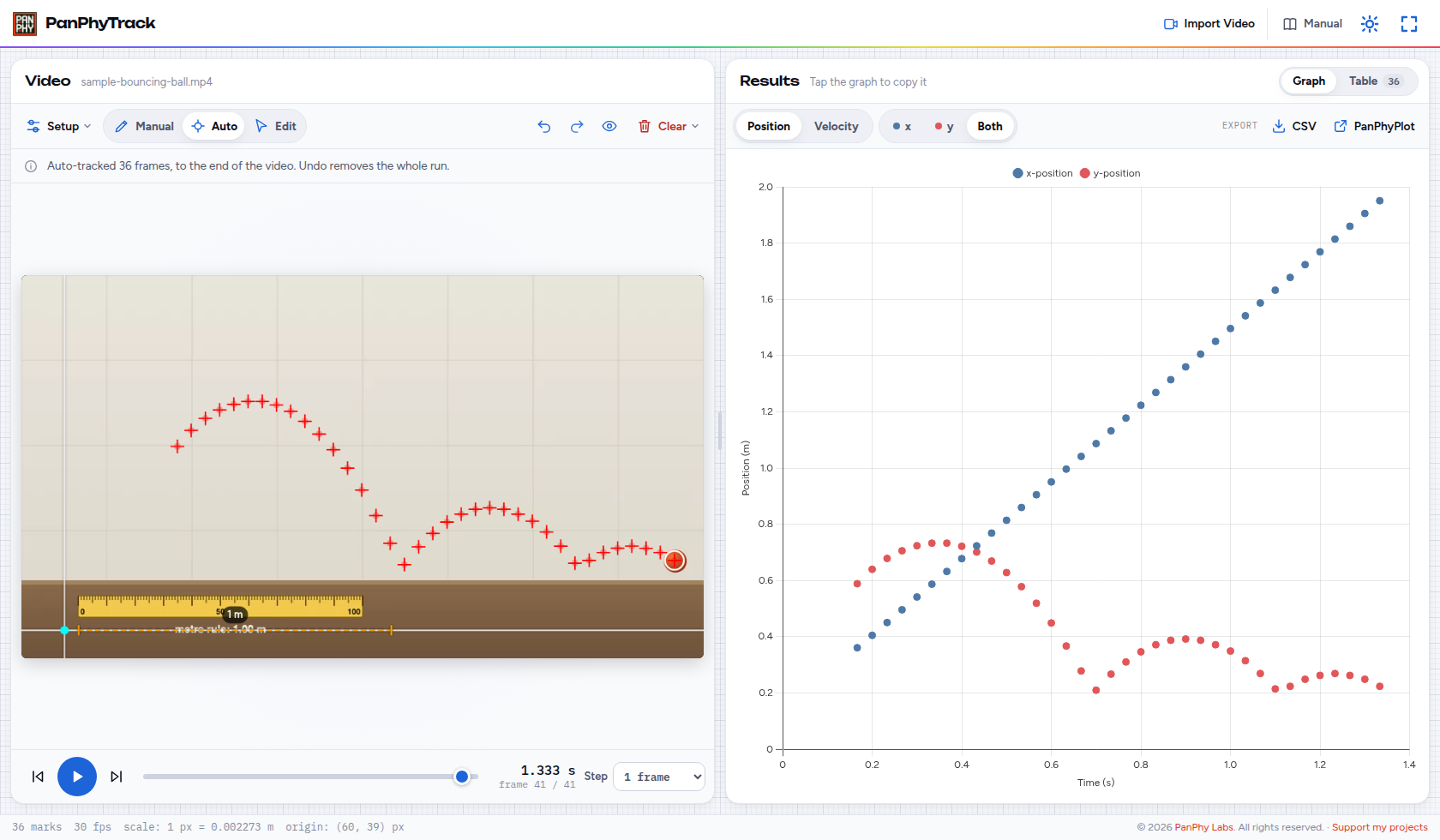
- Keep Auto selected. Click once on the ball in a clear frame.
- PanPhyTrack marks the object in each following frame until it is lost, leaves the frame or the video ends.
- Check the crosses. If tracking stops early, click the ball again to continue. Undo removes a whole auto run. Choose Manual to mark one frame at a time, or Edit to delete a single mark.
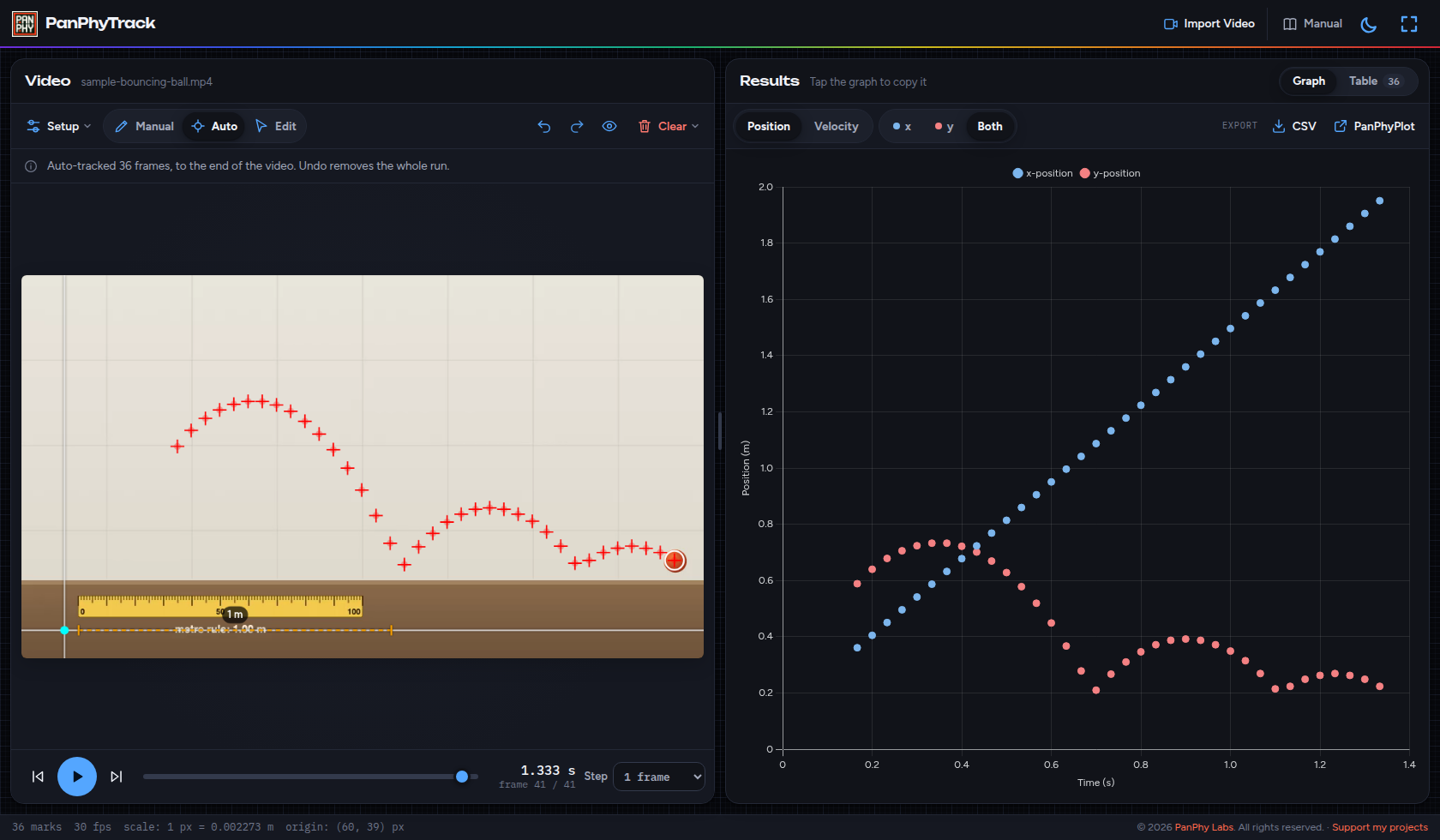
Crosses follow the ball. The Results graph begins to fill with position against time. Auto works best against a plain background.
 Enlarge screenshot
 Enlarge screenshot
Step 5 of 5
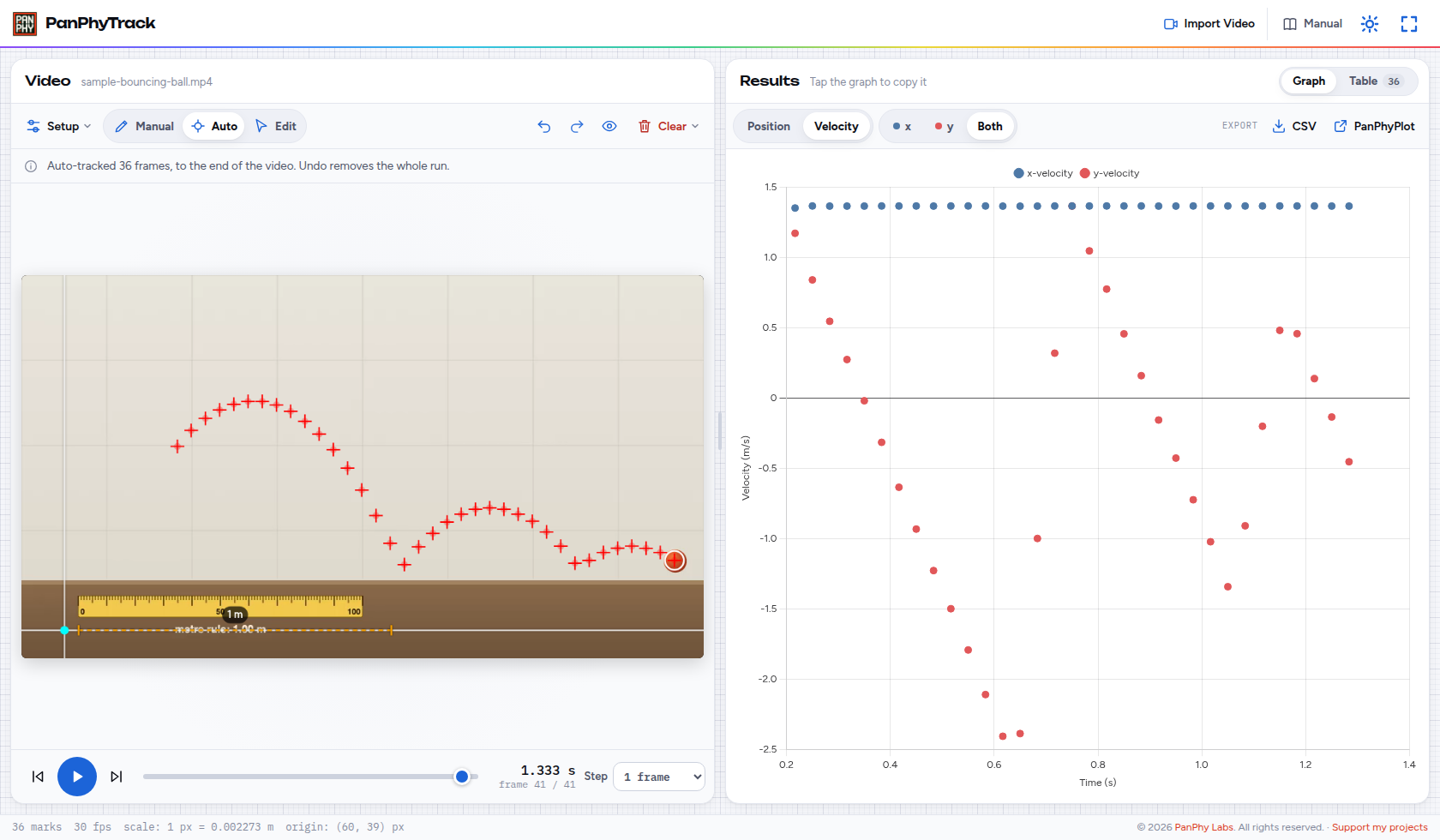
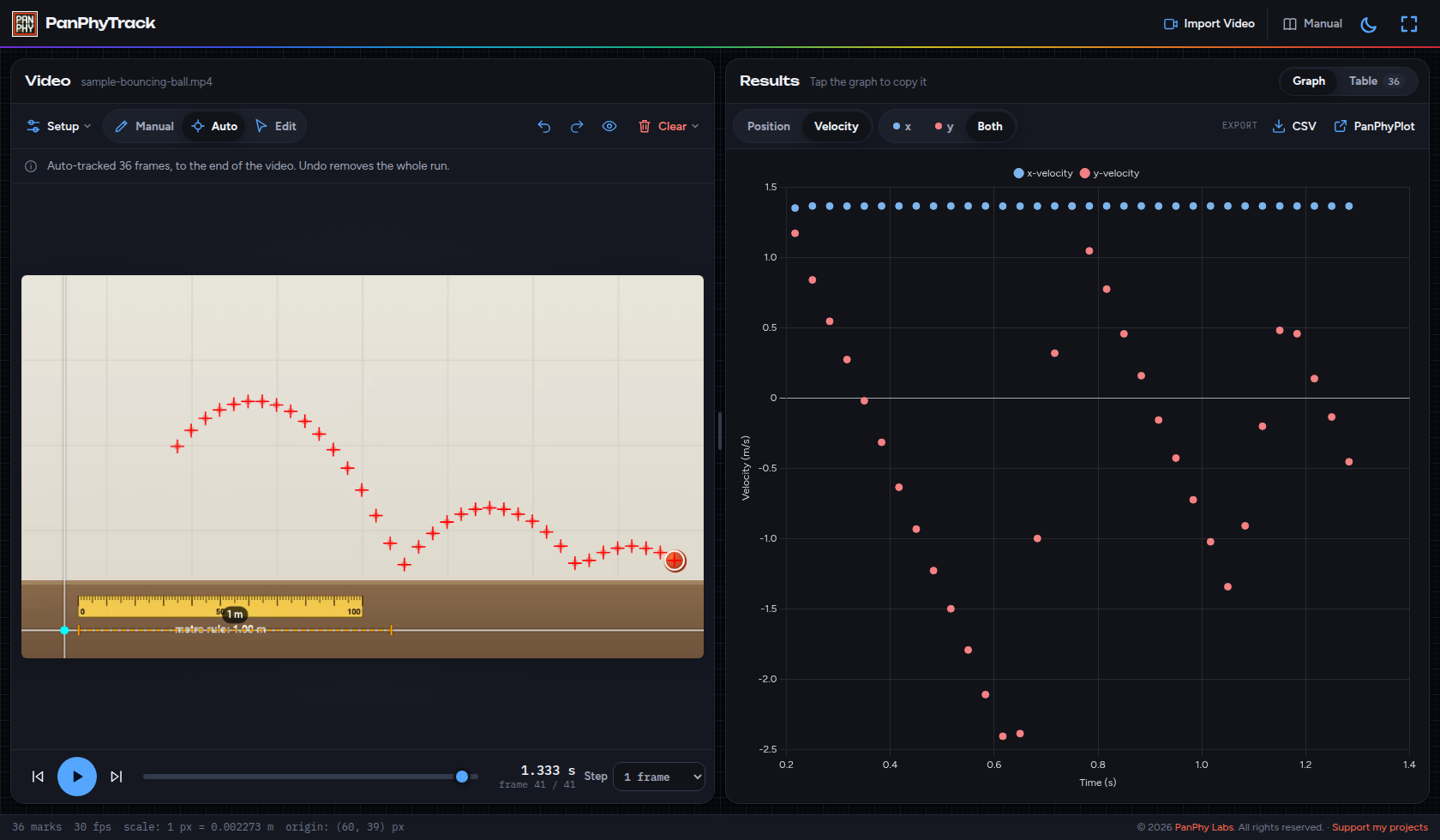
Read and export
- In Results, switch between position and velocity. Velocity needs at least four marks.
- Open the Table to edit a mark by hand if a cross sat slightly off the object.
- Export a CSV, or send the data to PanPhyPlot for fitting and uncertainties.
A CSV download named panphytrack_data.csv, or a new PanPhyPlot sheet named PanPhyTrack with time, x, y and velocities ready to plot.
 Enlarge screenshot
 Enlarge screenshot
Reference
Details for filming, tracking modes, the table and exports.
Filming tips
- Film side-on with the camera held still. A phone on a stand is enough.
- Include something of known length in the same plane as the motion, such as a meter rule.
- A plain background helps Auto tracking. High contrast between the object and the background matters more than resolution.
- For slow motion, record the filming frame rate and enter it under Setup → Frame rate so analysis times match real time.
Auto, Manual and Edit
- Auto (default): click the object once; marks continue frame by frame until the match is lost. Undo removes the whole run.
- Manual: mark one frame at a time; each click advances by the step. Clicking a frame that already has a mark replaces it.
- Edit: click a cross, then Delete to remove just that mark. For overlapping crosses, select the time in the Table or use the row’s delete button.
- Undo and Redo step through changes. Esc exits selection or cancels setting the scale or origin.
Graphs, table and export
- Results shows position or velocity against analysis time. Marks keep video playback times, so changing the filming rate recalculates analysis times.
- The Table lists each mark for precise edits.
- CSV downloads default to
panphytrack_data.csv. - Transfer to PanPhyPlot opens a sheet named PanPhyTrack through the URL hash, ready for fitting.
Keyboard
| Keys | Action |
|---|---|
| ← → | Step back or forward |
| Space | Play or pause |
| H | Hide or show the marks |
| Ctrl Z | Undo (Cmd+Z on Mac) |
| Ctrl Shift Z / Ctrl Y | Redo |
| Delete / Backspace | Delete the selected mark |
| Esc | Exit selection or cancel scale/origin |