
PanPhyPlot · User guide
From readings to a fitted graph
Follow one pendulum experiment from repeat readings to a result you can save and share.
Prefer to learn inside the app? Take the guided tour using practice data.
Your first graph
Work through these six steps in order. Screenshots match your theme; select one to enlarge it here.
Step 1 of 6
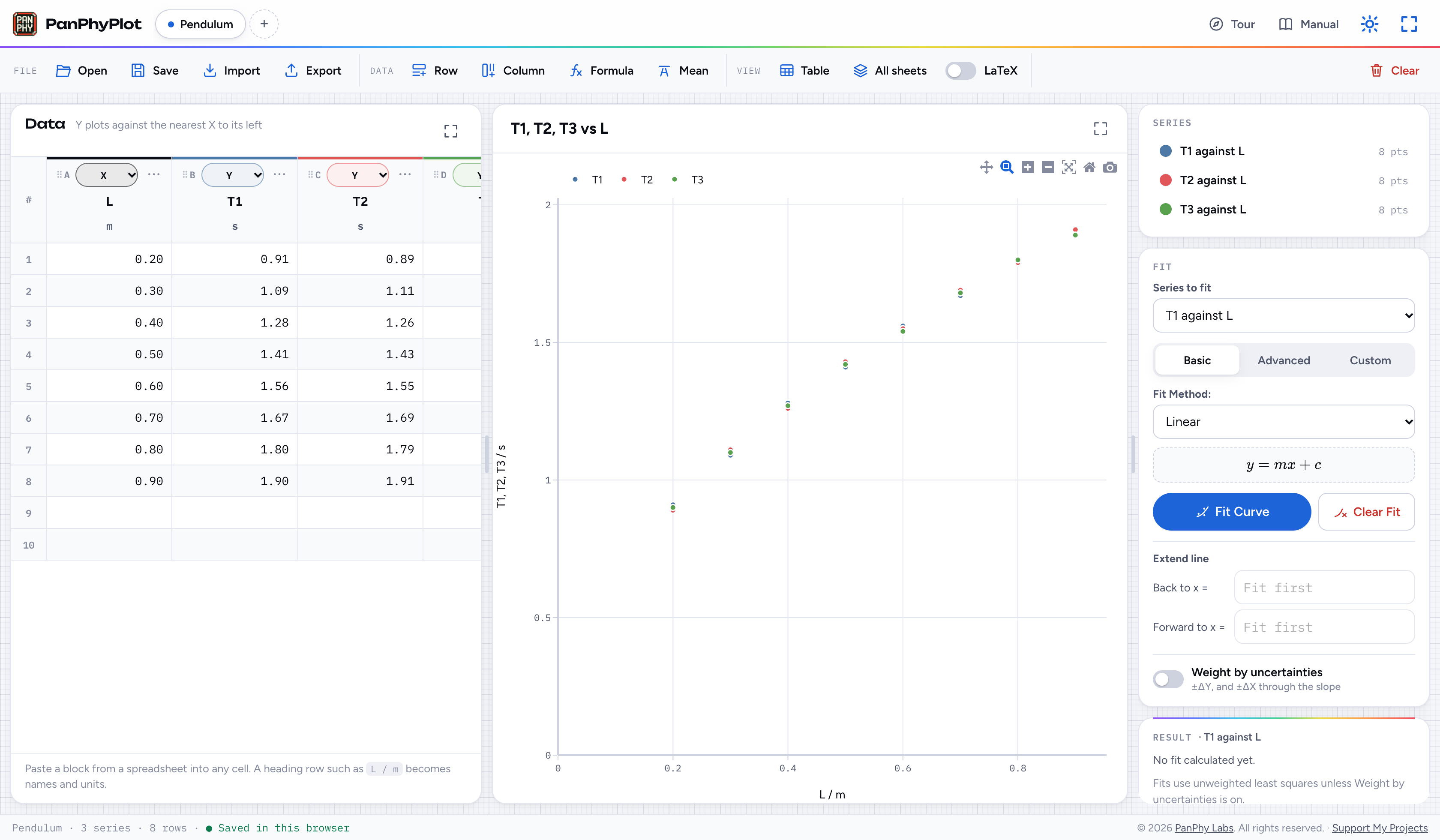
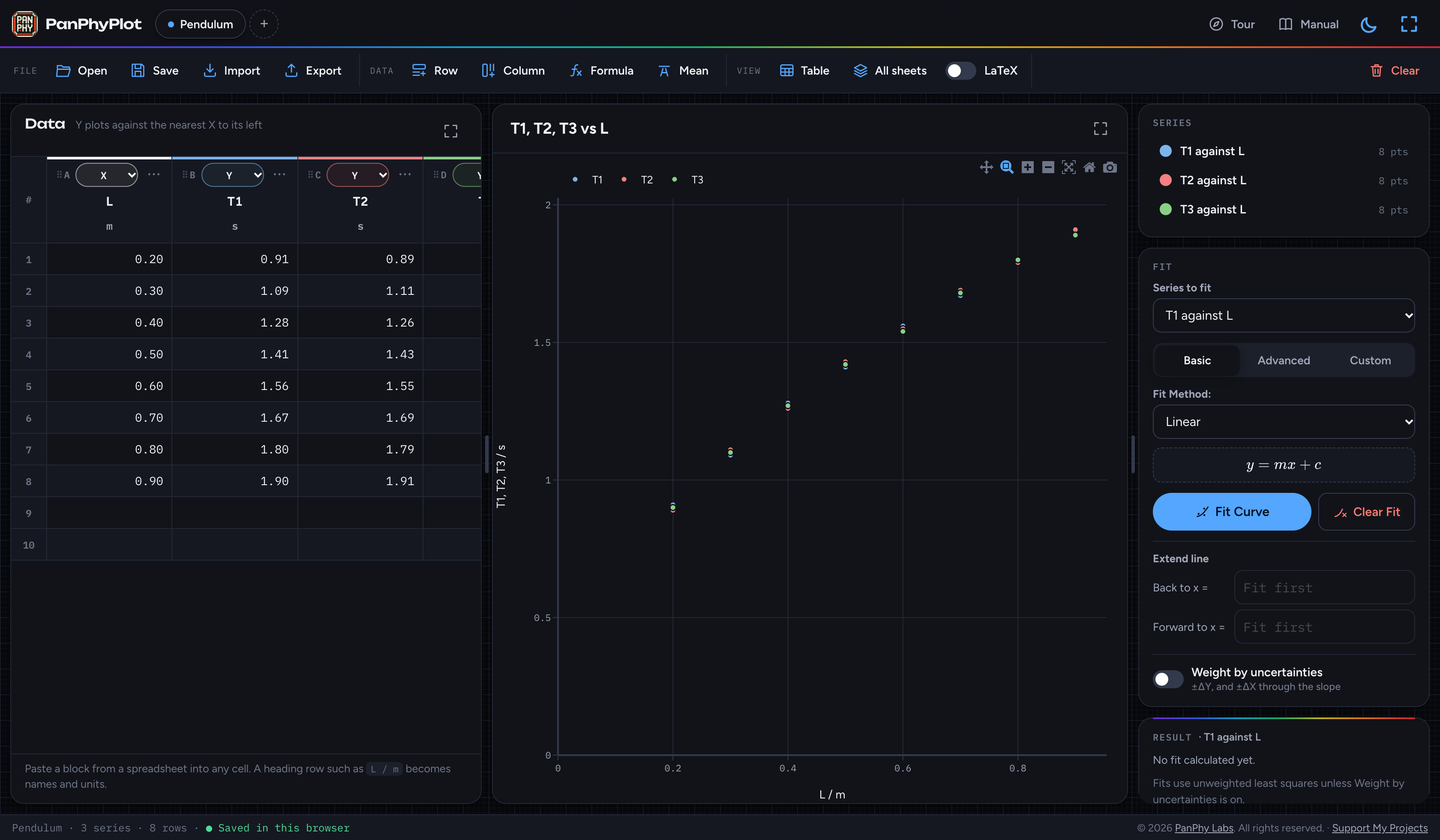
Load the sample data
- Open PanPhyPlot in a new tab, so you can keep this guide beside it.
- On an empty sheet, choose Try sample data. If you already have readings, use + to add an empty sheet first.
- Find Data, the graph, and the Series and Fit cards. On narrower screens the cards sit below the graph.
The Pendulum sheet contains length L and three period readings, T1, T2 and T3. Three colored series appear on the graph.
 Enlarge screenshot
 Enlarge screenshot
Step 2 of 6
Combine the repeat readings
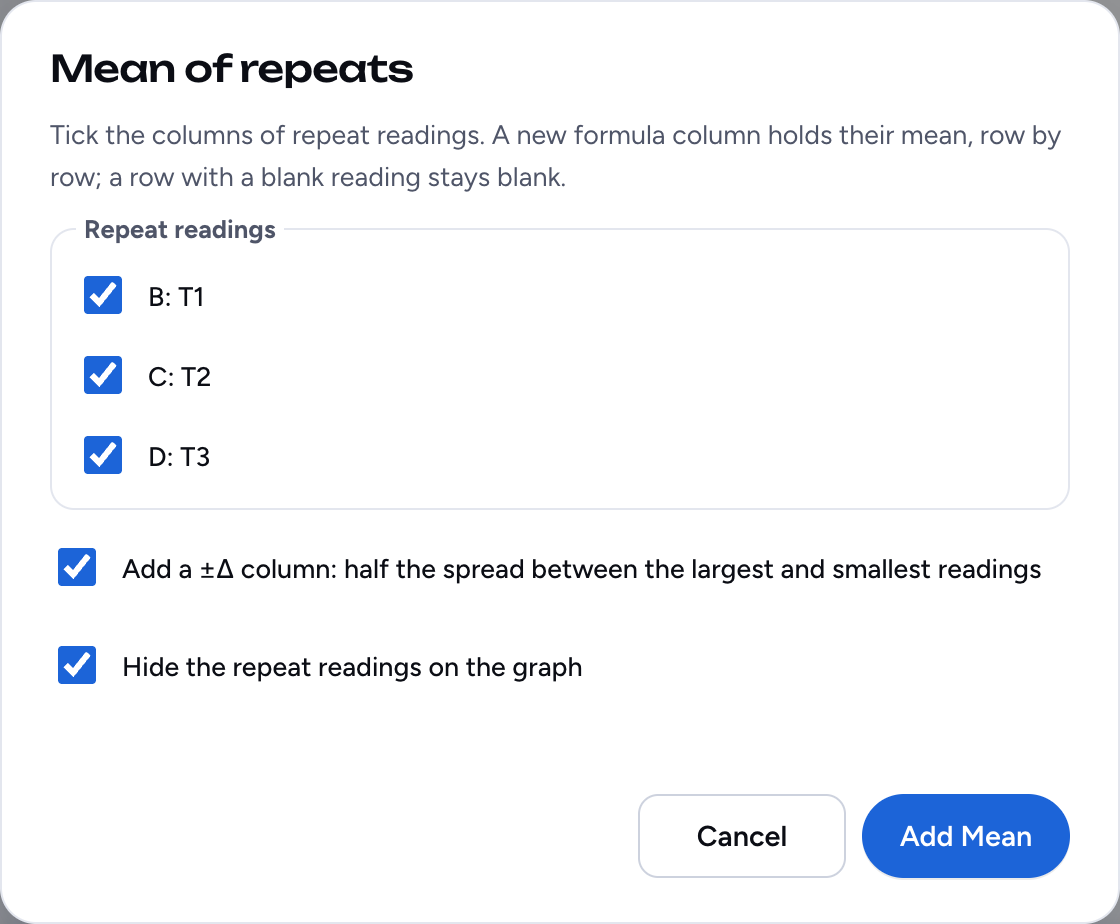
- Choose Mean in the toolbar.
- Keep T1, T2 and T3 selected.
- Keep both options ticked: add the half-spread uncertainty and hide the repeat readings.
- Choose Add Mean.
Two columns appear: T, the mean period, and ΔT, its uncertainty. The graph now shows the mean; the three original series are hidden.
 Enlarge screenshot
 Enlarge screenshot
Step 3 of 6
Calculate the period squared
- Choose Formula in the toolbar.
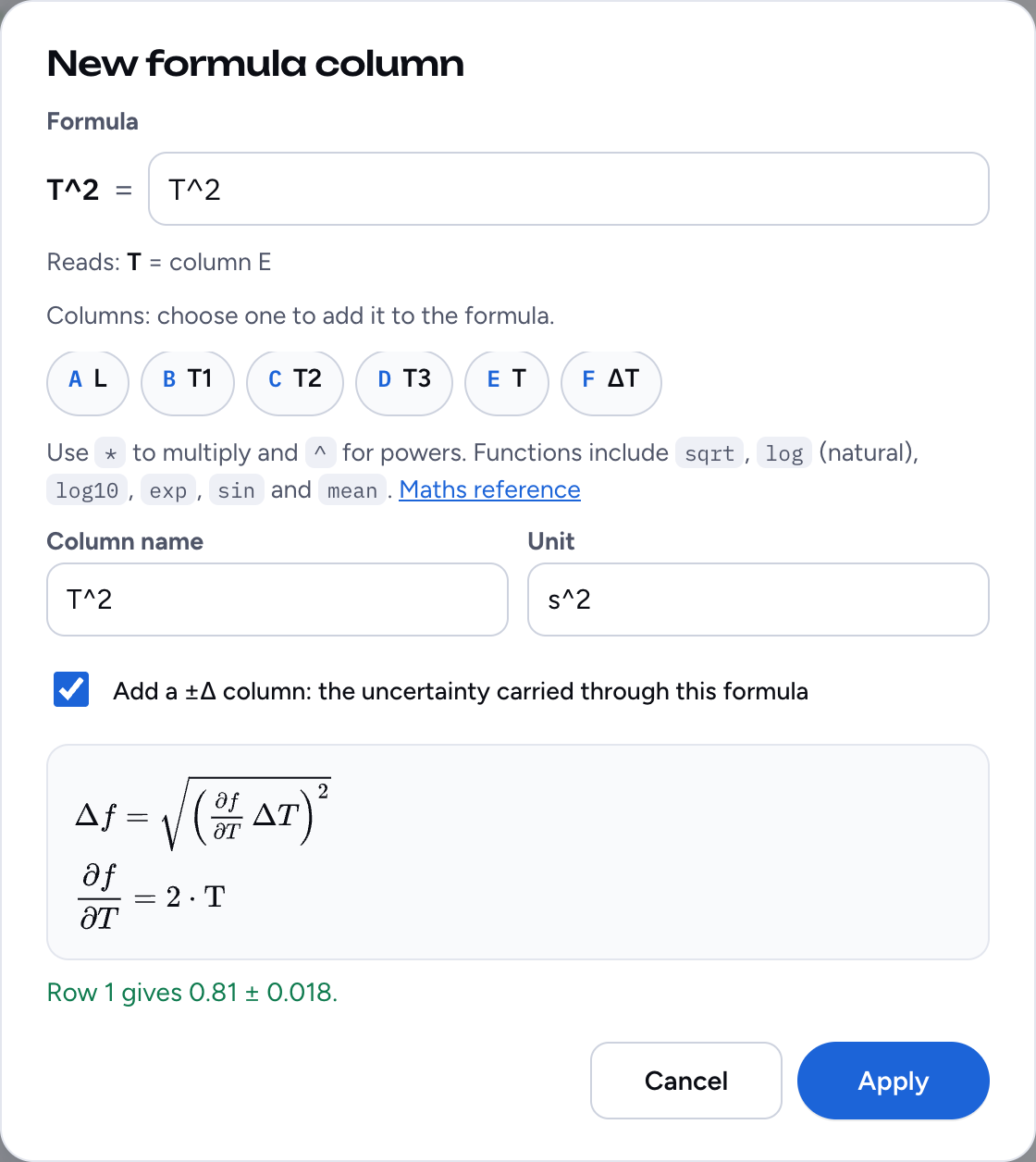
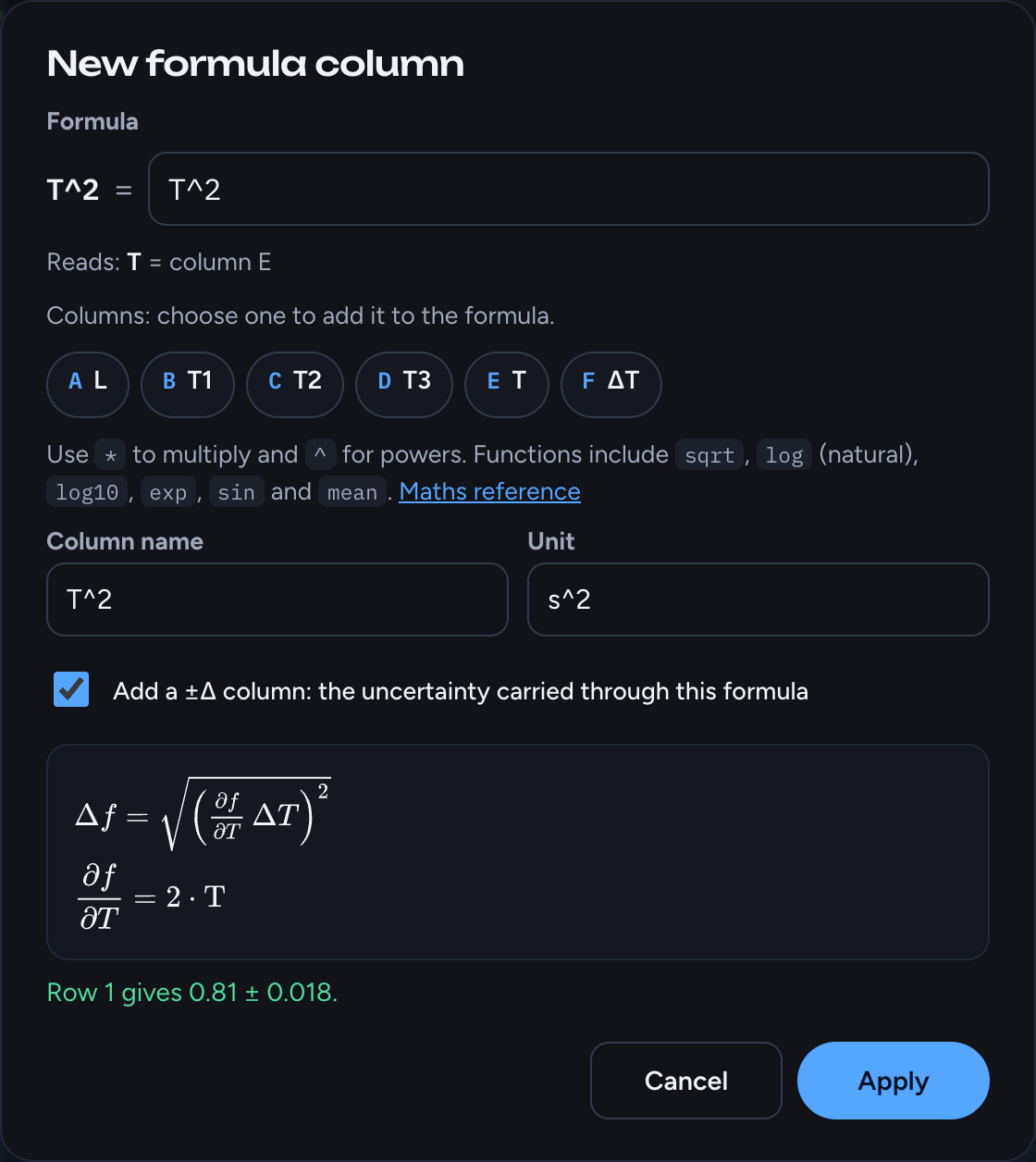
- Enter
T^2as the formula and column name, ands^2as the unit. - Tick Add a ±Δ column.
- Check the first-row preview, then choose Apply.
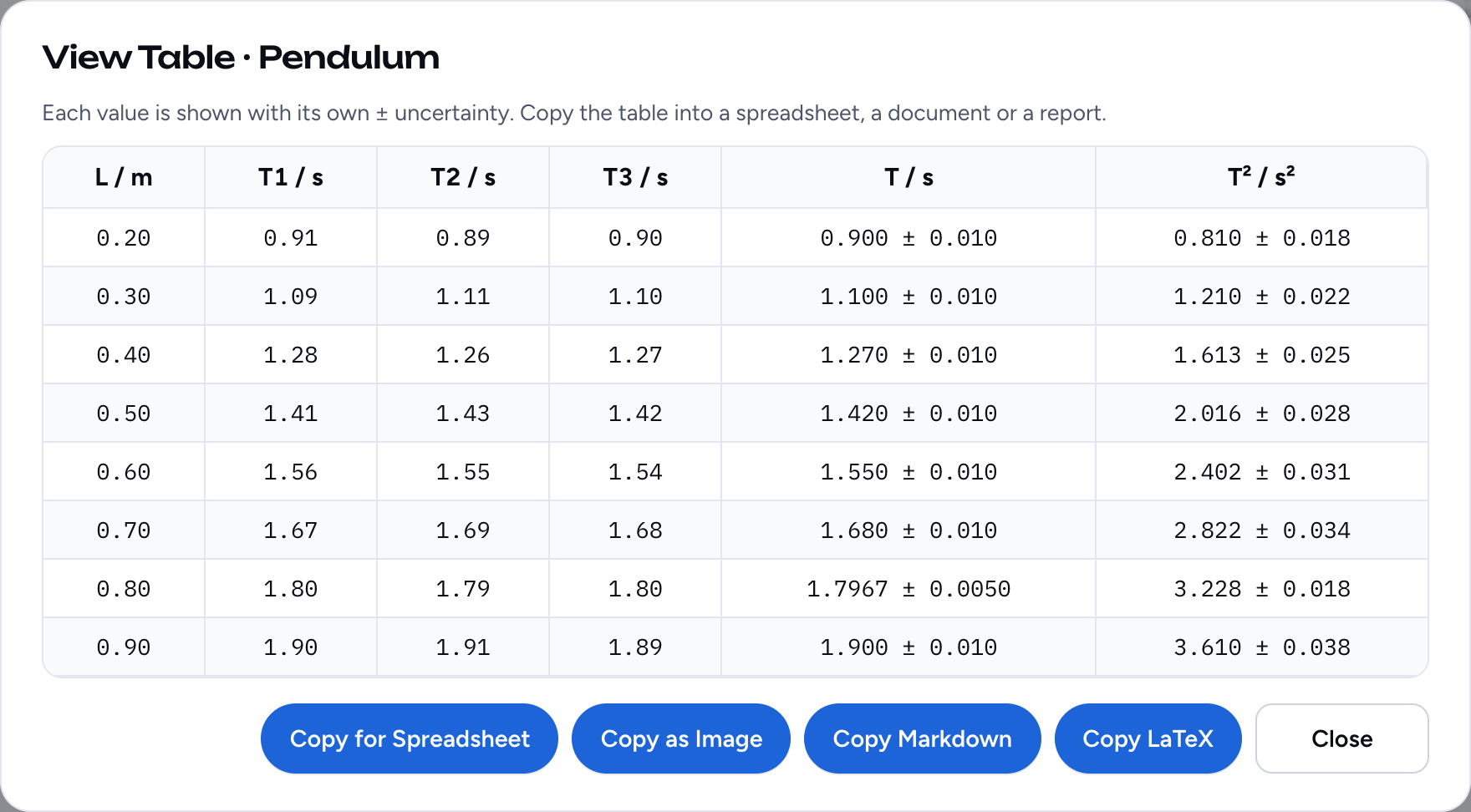
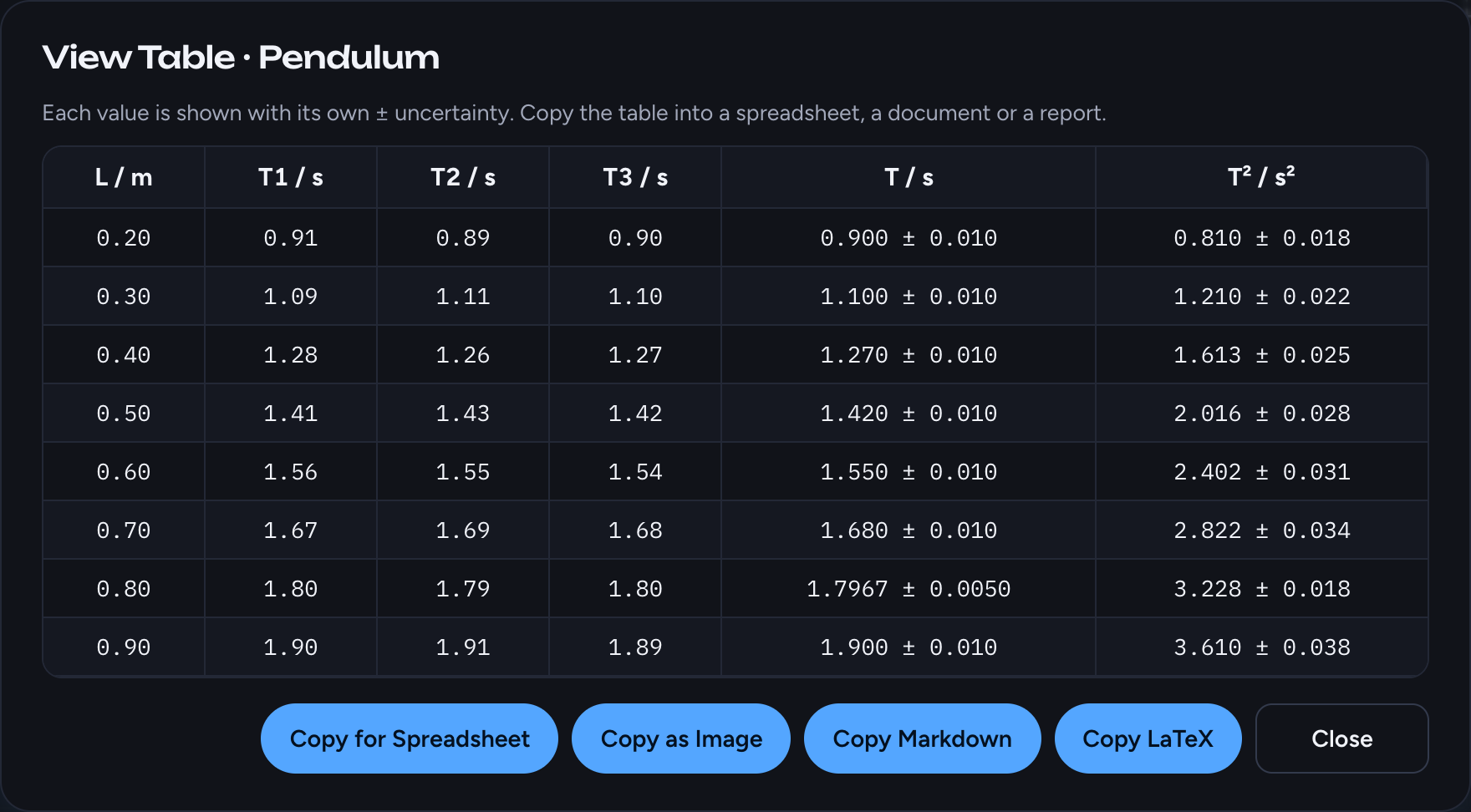
T² and its uncertainty are added. The first row gives 0.810 ± 0.018 s². The new cells are calculated automatically.
 Enlarge screenshot
 Enlarge screenshot
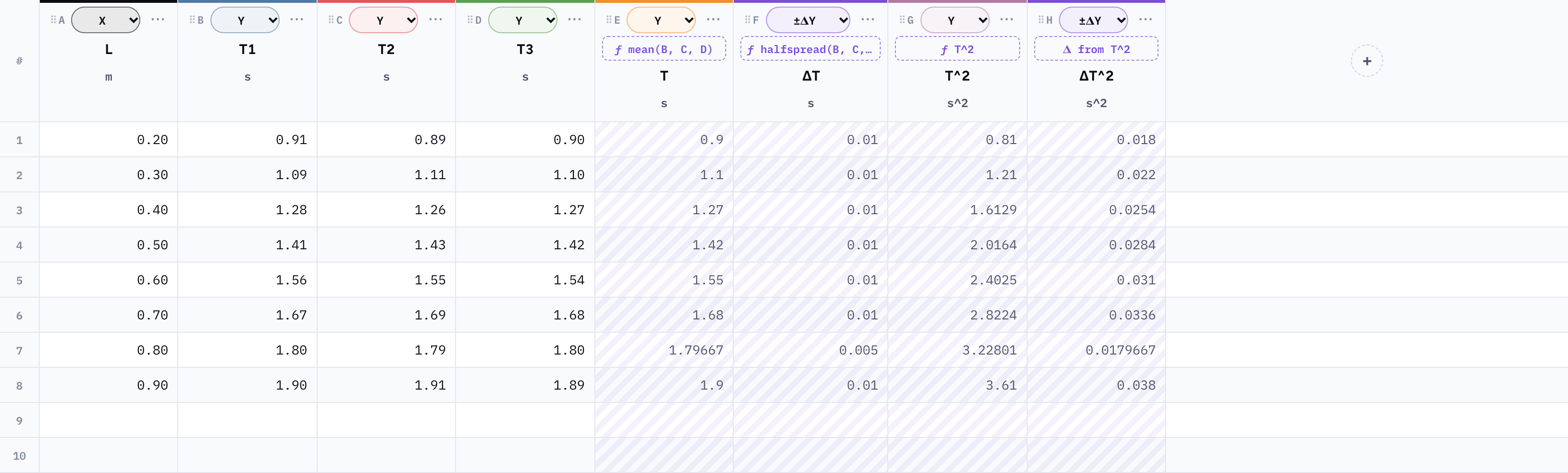
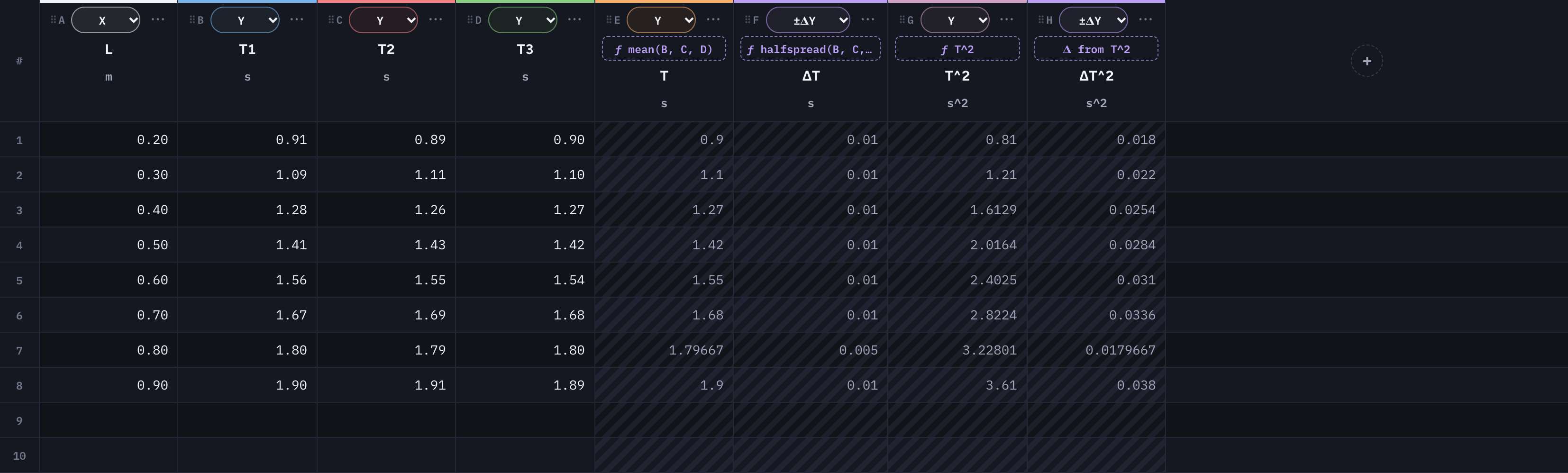
Check the four calculated columns
You should now have these four columns after the original readings. Formula cells are shaded and follow any changes to your data.
| Column | Contains | First row |
|---|---|---|
| T | Mean period | 0.900 s |
| ΔT | Half-spread uncertainty | 0.010 s |
| T² | Period squared | 0.810 s² |
| ΔT² | Propagated uncertainty | 0.018 s² |
 Enlarge screenshot
 Enlarge screenshot
Want to use another expression? See formula syntax and uncertainty propagation.
Step 4 of 6
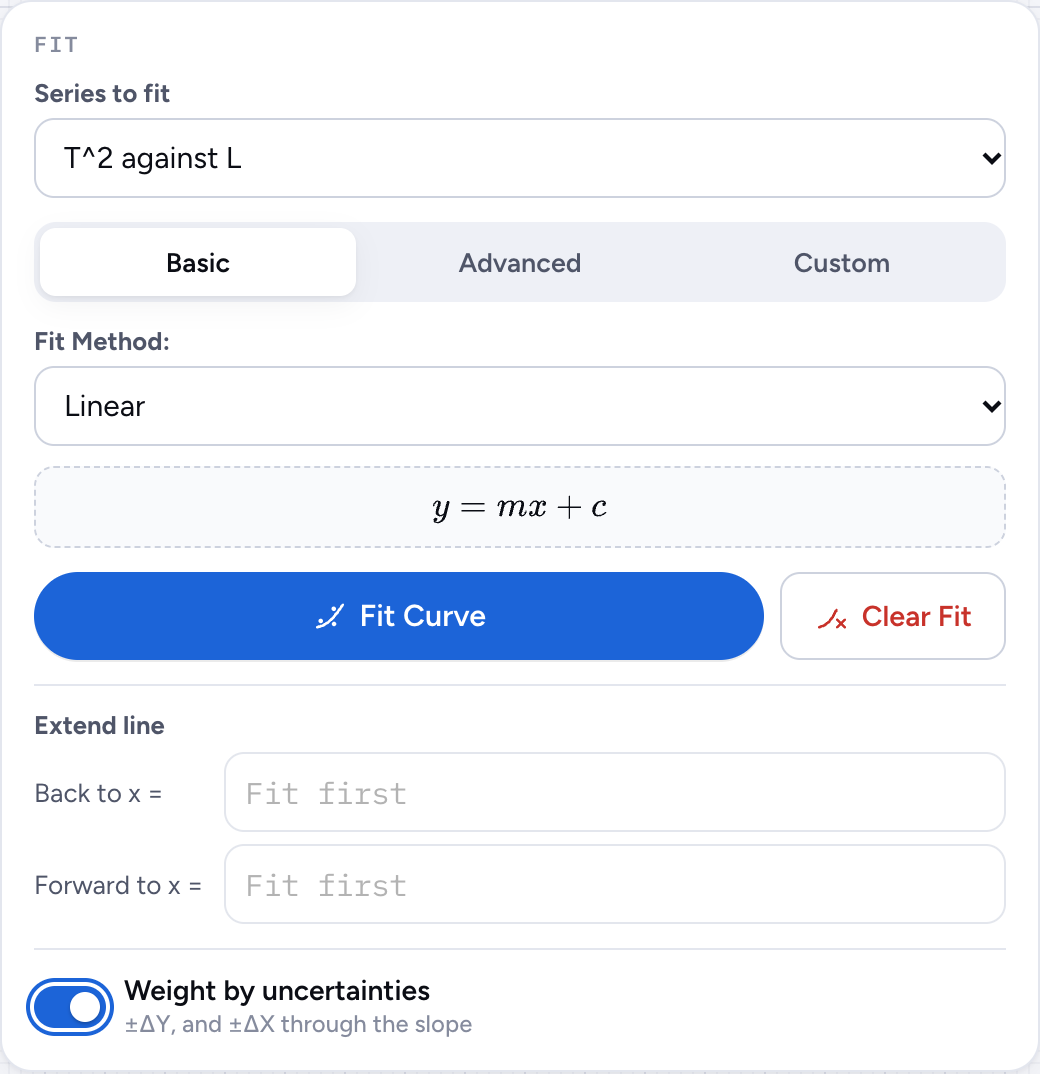
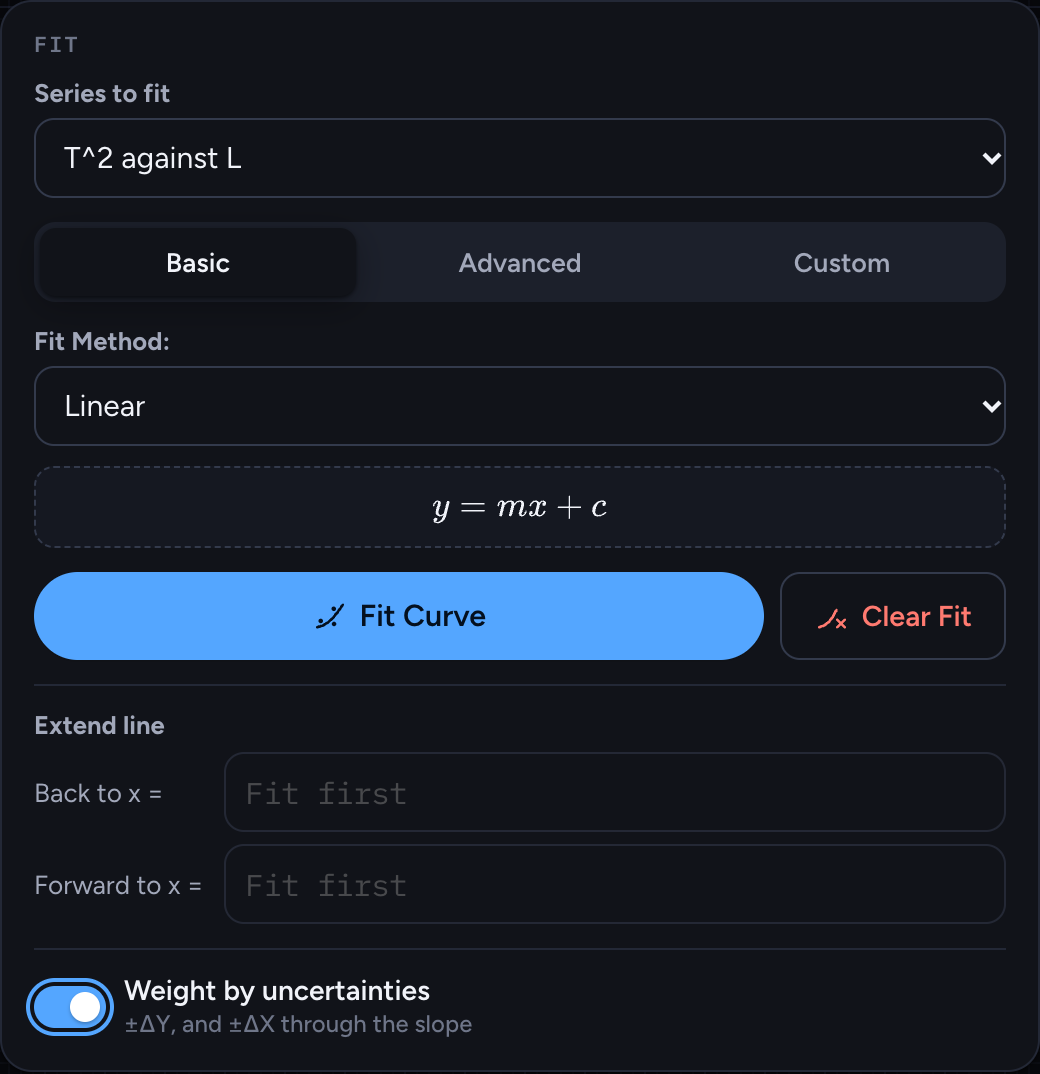
Fit a straight line
- In Series, click the T against L row to hide the mean period. Leave T^2 against L visible.
- In Fit, select T^2 against L.
- Choose Basic → Linear.
- Turn on Weight by uncertainties.
- Choose Fit Curve.
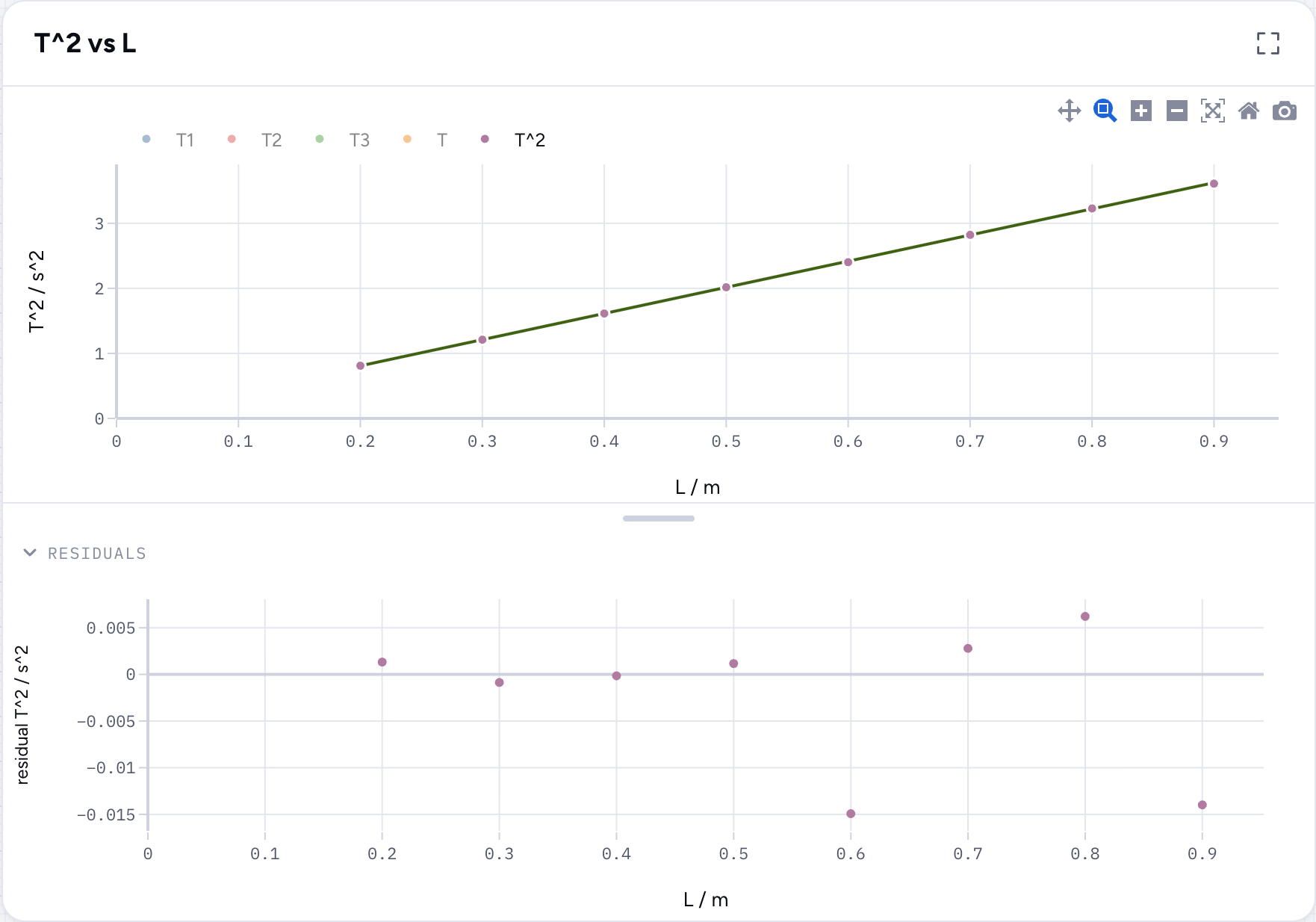
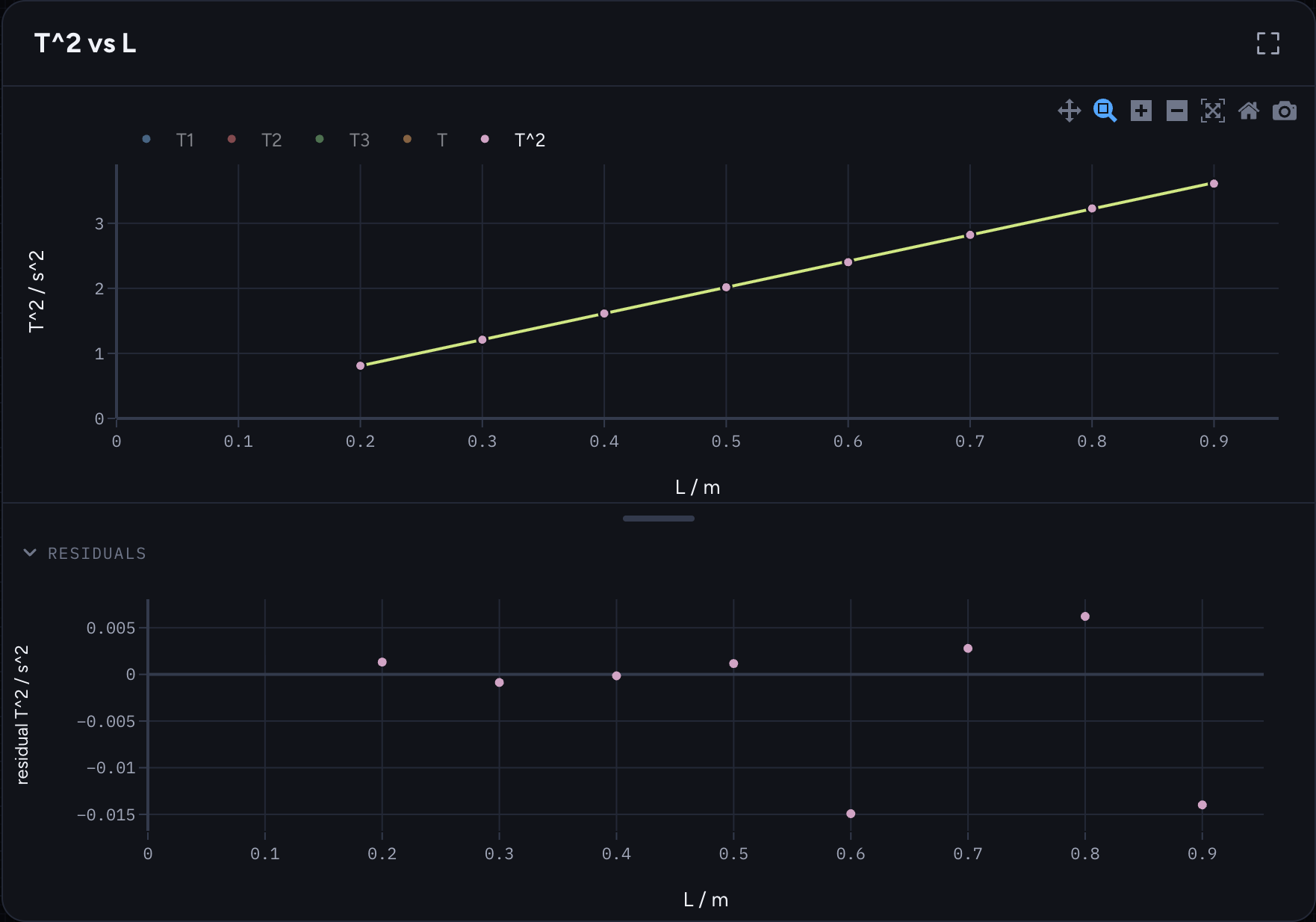
A straight line appears on the T² against L graph, and the Result card shows the fitted equation and parameters.
 Enlarge screenshot
 Enlarge screenshot
Step 5 of 6
Read the result
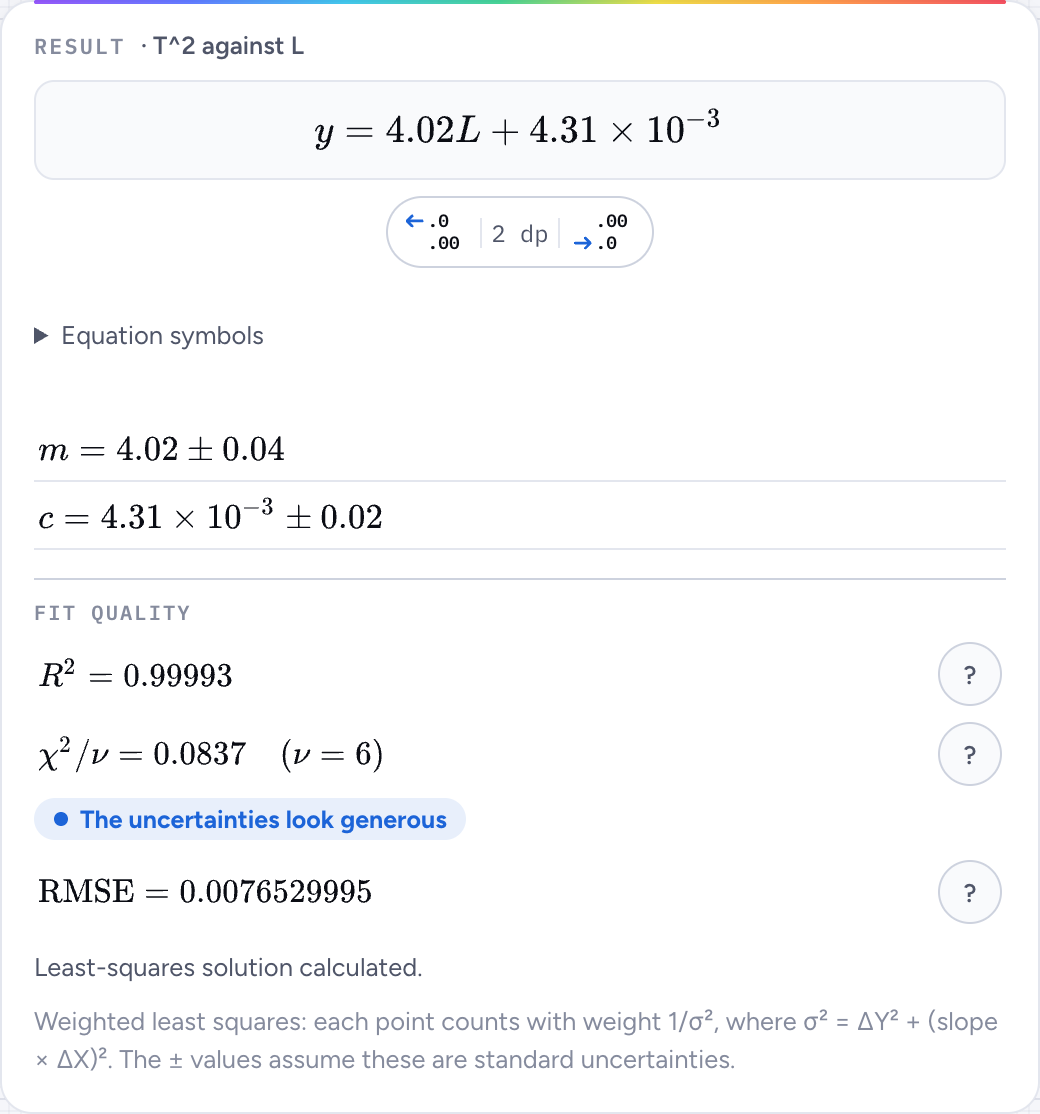
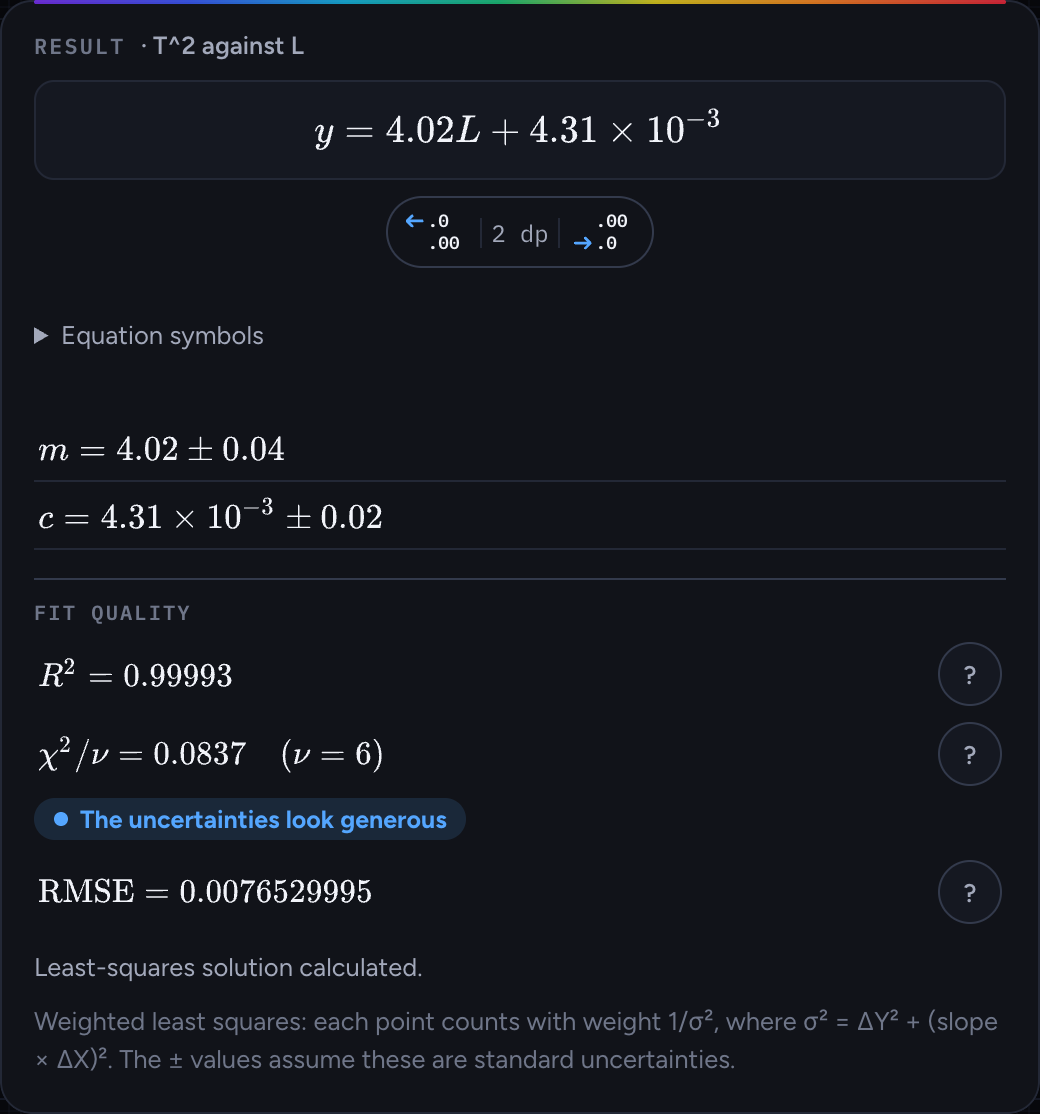
- Find the Result card.
- Read m, the slope, and c, the intercept, with their ± uncertainties.
- Use the decimal buttons below the equation to change its displayed precision.
- Tap a ? beside a fit-quality measure for an explanation.
For this sample, m is about 4.02 ± 0.04 and R² is close to 1. The points lie close to the line. The low χ²/ν also flags that the uncertainty estimates are generous.
 Enlarge screenshot
 Enlarge screenshot
Check the graph and residuals
Expand Residuals below the graph. These are the differences between the measurements and the fitted line. Look for scatter around zero; a curved pattern suggests trying another model. Drag the divider above the residuals to adjust the split height, or focus it and use Up/Down. Double-click or press Enter to reset the height.
 Enlarge screenshot
 Enlarge screenshot
See Reading a fit for the meaning of the parameters and quality measures, and how the pendulum slope gives g.
Step 6 of 6
Save or copy your work
- Choose Save in the toolbar to download an editable
.ppplotproject. - To copy the readings into a report, choose Table, then select Copy for Spreadsheet or Copy as Image.
- For a graph image, use the camera button on the graph.
The .ppplot file preserves your data, formulas and fits. You can use Open to continue on another device; copied tables and graph images are ready for a report.
 Enlarge screenshot
 Enlarge screenshot
Reference
Open a topic when you need more detail. These sections cover other workflows, shortcuts and the physics behind the results.
Sheets and columns
Each tab in the top bar is a sheet: use one sheet for each experiment. Tap + to add a sheet, tap the open sheet's name to rename it, and tap × to remove it. An empty sheet offers Try sample data: a pendulum experiment to explore.
A sheet is a table with as many columns as you need. Every column has a letter (A, B, C…), a name and a unit. Axis titles are built from them in the form name / unit, for example L / m.
On a computer or a landscape tablet, drag the thin handle between two panes to make one wider; near its starting position it snaps back onto it. With the handle selected, the arrow keys also resize it, and a double-click or Enter resets it. To widen a column of the table, drag the right edge of its heading; double-click the edge for the default width.
The button at the top right of the Data or graph section maximizes it, covering the other columns. The same button, now pointing inwards, or Esc puts it back.
The ⋯ button on a column heading moves, inserts, fills, clears or deletes the column, or gives it a formula. The row number on the left inserts or deletes a row.
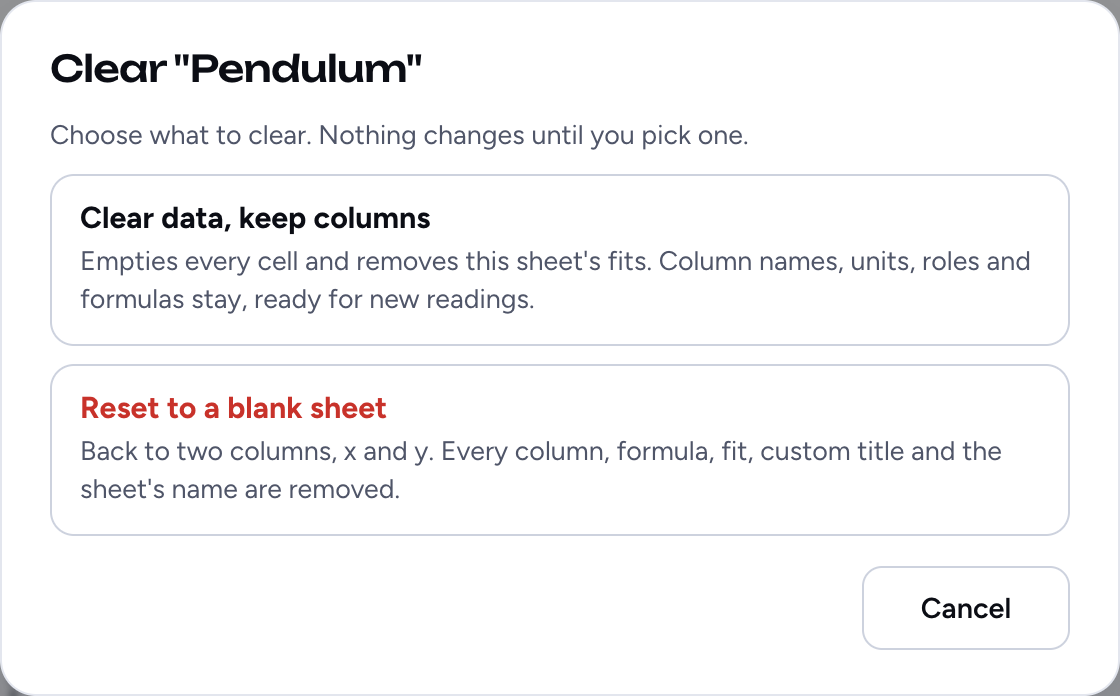
Clear, at the right of the toolbar, offers two choices. Clear data, keep columns empties every cell and removes the sheet's fits, but keeps the names, units, roles and formulas, ready for a repeat of the experiment. Reset to a blank sheet goes back to a new sheet: two columns, x and y, and no name, so its tab shows its default name, such as Sheet 2. Both choices reset the zoom and axis ranges to automatic scaling, including zero.
 Enlarge screenshot
 Enlarge screenshot
Column roles
The colored chip at the top of each column sets its role:
| Role | Meaning |
|---|---|
| X | Values for the horizontal axis. |
| Y | Values for the vertical axis. Each Y column is one series on the graph. |
| ±ΔX, ±ΔX % | The uncertainty in an X column, absolute or as a percentage. |
| ±ΔY, ±ΔY % | The uncertainty in a Y column, absolute or as a percentage. |
| Ignore | Kept in the table, but not plotted. |
Columns are paired by position, as in OriginPro:
- A Y column plots against the nearest X column to its left.
- A ±ΔY column belongs to the nearest Y column to its left.
- A ±ΔX column belongs to the nearest X column to its left.
So this sheet gives two series, T1 and T2 against L, with error bars on T2 only:
A second X column further right starts a new group: the Y columns after it plot against it. To change the pairing, drag a column by its letter (⠿ B) and drop it where the line shows; the table scrolls if you drag to its edge. Move left and Move right in a column's ⋯ menu do the same one step at a time. Formulas that use column letters follow the columns they refer to.
Entering data
Typing
Tap a cell and type a number such as 1.25, -0.4 or 3e-5. Arrow keys and Enter move between cells, and Enter on the last row adds a row. Commas and units in a cell are not numbers: the cell turns red, is kept, and is left out of the graph.
To give every reading the same uncertainty, such as ±0.05 s, add a ±ΔY column and use Fill with one value… from its ⋯ menu. It fills only the rows that have a reading in the column the uncertainty belongs to, and says how many before it does; rows without a reading stay empty. If you add readings later, fill the column again. For a column that is not an uncertainty, it fills the rows that have any data.
Pasting from a spreadsheet
Copy a block of cells in a spreadsheet, tap the cell where it should start and paste. Rows and columns are added as needed. If you paste into the top row and the first row of the block is text, such as L / m or T (s), it becomes the column names and units.
Selecting, copying and clearing cells
Drag across cells with a mouse or pen to select a block, or hold Shift and click, or use Shift with the arrow keys. The status bar shows how many cells are selected. Copy (Ctrl/⌘ C) puts the block on the clipboard as rows and columns that paste straight into a spreadsheet; cut (Ctrl/⌘ X) also empties it. Pasting a block starts at the top-left cell of the selection; pasting one value fills every selected cell. Delete or Backspace empties the selection and Esc cancels it. Formula columns are copied but never overwritten. On a touchscreen, dragging scrolls the table, so select with Shift on a keyboard or paste into one cell.
Importing a CSV file
Import opens a preview of the file. Check the role chosen for each column and whether the first row holds names, then choose a new sheet or the current one. Roles are only suggested from clear headings: a column called Δx is suggested as the uncertainty of the column named x. Nothing is decided without the preview.
From PanPhyTrack, Export to PanPhyPlot opens PanPhyPlot in a new tab with the data in a new sheet: t, x and y, then a second t column with the smoothed velocities vx and vy, which belong to the times midway between marks. The velocities start hidden; show them in the Series list.
Repeat readings
Put each set of repeats in its own Y column, such as T1, T2 and T3. Mean opens Mean of Repeats and then adds a formula column holding their mean, named after them (T). It can also:
- add a ±Δ column of half the spread between the largest and smallest readings, a common estimate of the uncertainty in a mean;
- hide the repeat series, so the graph shows the mean.
A row with a missing reading takes the mean of the readings it has, and its half spread needs at least two. The formulas are mean(B, C, D) and halfspread(B, C, D); in any formula, mean, median, min, max and halfspread leave out a blank reading among their inputs.
Formula columns
Data → Formula adds a column calculated from others, row by row; Set formula… in a column's ⋯ menu turns an existing column into one. Its cells are shaded, cannot be typed into, and follow any change to the data.
- Refer to a column by its letter (
B) or by its name, if the name is a single word such asTorT1. - The Formula dialog shows a chip for each column, with its letter and name; choose one to add it to the formula. A line under the formula shows which column each name reads, so
T2is one column, not T × 2. - Use
*to multiply and^for powers:T^2,4*pi^2*L/T^2,1/sqrt(d). The=is already shown before the box, after the column name, so there is no need to type one; a typed=is ignored. - Functions include
sqrt,exp,log(natural log),log10,sin,cos,tan(in radians),abs,mean,minandmax. Constants arepiande. - A row where any input is blank or invalid stays blank.
The dialog checks the formula as you type and shows the first row's result. Formulas that use column letters keep working when columns are moved or inserted. Renaming a column rewrites the formulas that use its name; if the new name is not a single word, they use the column's letter instead.
E means column E, not Euler's number: use e for that.Uncertainties
Uncertainties live in ±ΔX and ±ΔY columns, absolute or as a percentage of each value, and appear as error bars.
Carrying uncertainties through a formula
Tick Add a ±Δ column in the formula dialog to add a column with the uncertainty of the formula's result. It uses each input's own ±Δ column, by the pairing rule above, and combines them:
For \(f = T^2\), \(\dfrac{\partial f}{\partial T} = 2T\), so \(\Delta(T^2) = 2T\,\Delta T\). The dialog writes out each derivative for your formula. This assumes the uncertainties are small and independent; inputs without a ±Δ column add nothing. Percentage uncertainties are turned into absolute ones first.
The graph
- Every Y series of the sheet is plotted, with error bars from its ±Δ columns.
- The Series card on the right is the graph's color key: tap a series there, or its legend entry, to hide or show it with its fit. Each Y column's heading carries the same color.
- The title follows the columns until you type your own; clear it to return to the automatic title.
- The toolbar above the graph zooms, pans, rescales and downloads a PNG image.
- LaTeX mode typesets names, units and titles: a unit of
m s^{-1}reads as m s⁻¹. The title above the graph shows typeset; tap it to edit the LaTeX, and press Enter to see it typeset again. - View → All sheets draws every series of every sheet together, with labels you can edit.
Fitting
In the Fit card, choose the Series to fit: the Y column to fit. It lists only the series shown on the graph; hiding the one being fitted moves the choice to a visible one, and a series with no data yet cannot be chosen. Each series keeps its own fit, so a hidden series's fit returns when it is shown again.
| Tab | Models |
|---|---|
| Basic | Linear \(y = mx + c\), quadratic, cubic, exponential \(y = A e^{b(x-x_{\rm ref})} + c\), where \(x_{\rm ref}\) is fixed at the middle of the measured x-range and the general power law \(y = A(x - x_0)^{b} + c\). Its four parameters are found by an automatic search; with few points they can trade off against each other, so their ± values may be large; if theory says \(x_0 = 0\) and \(c = 0\), a Custom fit A*x^b pins them. |
| Advanced | Sinusoidal and Gaussian, with automatic starting values you can adjust. Gaussian fits support peaks and dips above a baseline. Sinusoidal fits need at least five points; automatic frequency searches stay within the sampling limit for evenly spaced data. A larger manual frequency extends the search, but sampled data may not distinguish aliases. |
| Custom | Your own formula in \(x\), such as A*exp(-k*x)+c or k*x. Supports up to 5 fit parameters. Other symbols are parameters to fit. Use Auto guesses to recalculate starting values. Expand Parameter bounds (optional) to set Min and Max for each parameter; leave them blank for no bound. Formulas linear in their parameters are solved directly. See the Math reference for custom fit syntax, supported functions and examples. |
Extending the line
A fitted line is drawn across the data. To draw it further, type x values under Extend line: Back to x = before the first point, such as 0 to read an intercept, and Forward to x = beyond the last. Leave a box blank to stop at the data. Each series keeps its own extension through a new fit; Clear Fit removes it. Fit models are saved with the project and restored on reopening or reloading. Older saved fits without a recoverable model need fitting again before changing an extension.
Weighted fits
Turn on Weight by uncertainties to let the more certain points count for more. Each point has weight \(1/\sigma^2\), with \(\sigma^2 = \Delta y^2 + \left(f'(x)\,\Delta x\right)^2\): its ±ΔY, and its ±ΔX turned into a vertical uncertainty through the slope of the curve (the effective variance). The fit is re-weighted as the slope settles. Weighting works for every fit type and needs a ±ΔY or ±ΔX above zero for every point.
A fit becomes Outdated, drawn dashed, as soon as its data or ±ΔY change. Click Fit Curve again to update it.
Reading a fit
- The equation of the fitted curve, to 2 decimal places at first. The two buttons under it, like a spreadsheet's increase and decrease decimal buttons, show from 0 to 8 places; a value that would round to zero switches to scientific form, such as \(2.30 \times 10^{-3}\). The fit itself keeps every digit. Tap the equation to copy it, as shown, as an image or as LaTeX.
- Equation symbols: expand this control in the Result card to choose Vertical and Horizontal symbols without changing column headings or axis labels. Enter simple LaTeX such as
t_1,R_{out},\thetaor\Delta T; each field has a live preview. Leave a field blank to use a single-letter column name, or fall back to x and y. Symbols are saved with their columns and included when copying the equation. Invalid or identical symbols keep the last valid notation. Custom fit formulas still usex. - Parameters with uncertainties for every fit type, such as \(m = 3.97 \pm 0.05\), using the same decimal-place setting as the equation. Small nonzero values and uncertainties use scientific notation when they would otherwise round to zero. A weighted fit treats each σ as a standard uncertainty. An unweighted fit estimates the uncertainty from how far the points scatter about the curve. A quadratic or cubic is fitted internally in a shifted, scaled variable to keep it accurate, then reported in \(x\), with its ± values carried across.
- Under Fit quality, hover, focus or tap each ? for a short explanation and guidance on interpreting the value. Apart from the parameters: \(R^2\), near 1 when the points lie close to the curve, and the RMSE, the typical vertical distance of a point from it.
- \(\chi^2/\nu\), shown when every point has a ±ΔY or ±ΔX. Here \(\chi^2 = \sum \left(\frac{y - f(x)}{\sigma}\right)^2\), and \(\nu\) is the number of points minus the number of fitted parameters. Near 1, the points scatter about as much as their uncertainties suggest. Much more than 1, the uncertainties are too small or the model does not fit. Much less than 1, the uncertainties are generous.
- Residuals: tap Residuals under the graph to show them, and tap again to fold them away. Each is the vertical distance of a point from the fit; a pattern in them, such as a curve, suggests the model is wrong.
Example: for a pendulum, \(T^2 = \dfrac{4\pi^2}{g}L\), so a straight-line fit of \(T^2\) against \(L\) gives \(g = \dfrac{4\pi^2}{m}\), with \(\dfrac{\Delta g}{g} = \dfrac{\Delta m}{m}\).
Sharing your work
- View → Table shows the sheet with each value beside its own ± uncertainty, ready to copy for a spreadsheet, as an image, as Markdown or as LaTeX. Calculated values are rounded to the decimal place of their uncertainty; typed values appear as entered.
- Export saves every column, including calculated ones, with headings such as
L / mthat Import reads back. Formulas themselves are not saved in the file. - The camera button on the graph saves it as a PNG image.
Saving and devices
Your sheets are saved automatically in this browser on this device. They are not uploaded anywhere, and clearing the browser's site data removes them: use File → Save to keep a complete project file or move your work to another device.
Save downloads a .ppplot project containing every sheet, data and formulas, graph titles and zoom ranges, hidden series, fit results and uncertainties, custom fit formulas and bounds, equation symbols, decimal places, line extensions and current fit controls. The graphs are rebuilt from these settings when you reopen the file.
Open selects a project file and checks it before asking to replace all current sheets. Cancel to keep your current work, or save it first. A malformed or unsupported file leaves the current project intact. You can open files on another device and continue editing; new fits can be extended immediately. Browser theme and pane widths stay with the device.
Import and Export continue to handle CSV data for an individual sheet; CSV does not preserve formulas or fitted results.
Every tab or window you open this page in shares the same sheets, so use a new sheet, not a new tab, for another experiment. If the work changes in another tab, this tab stops saving and asks whether to reload and see the other tab's version, or keep its own; nothing is overwritten without asking.
If data from an earlier version is found in this browser, a one-time offer can add it as new sheets with names, units and uncertainties. Fits are not imported. Accepting or declining leaves the earlier save untouched.
PanPhyPlot works best on a laptop or tablet. On a small screen, choose Continue to use the workspace or Not now to return to the homepage.