
PanPhyCircuits · User guide
From parts on a bench to a measured circuit
Open an example, operate the switch, read the meters, then flip to the circuit diagram — the same electrical circuit in both views.
Your first circuit
Work through these five steps in order. Screenshots match your theme; select one to enlarge it here.
Step 1 of 5
Open an example
- Open PanPhyCircuits in a new tab.
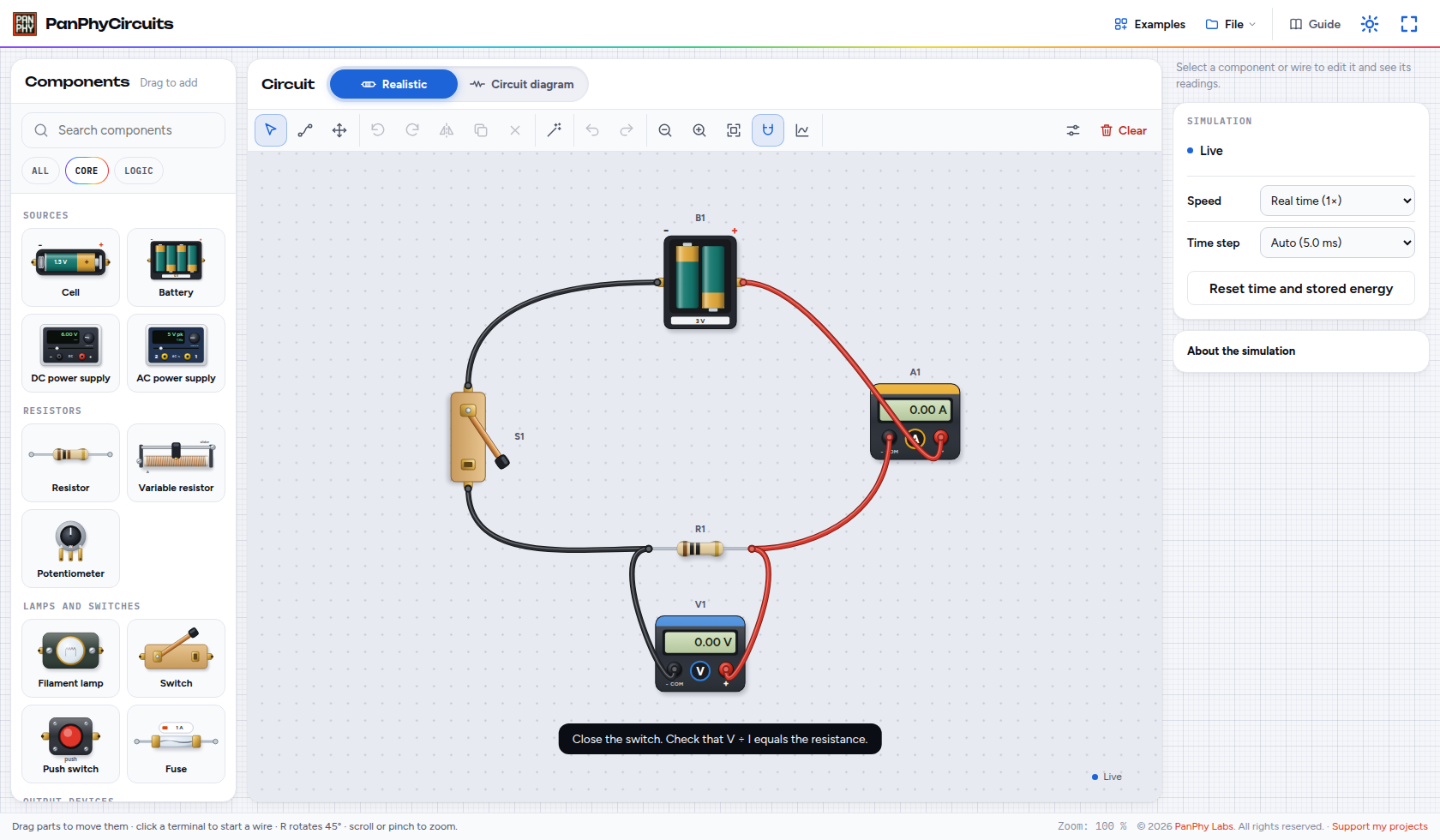
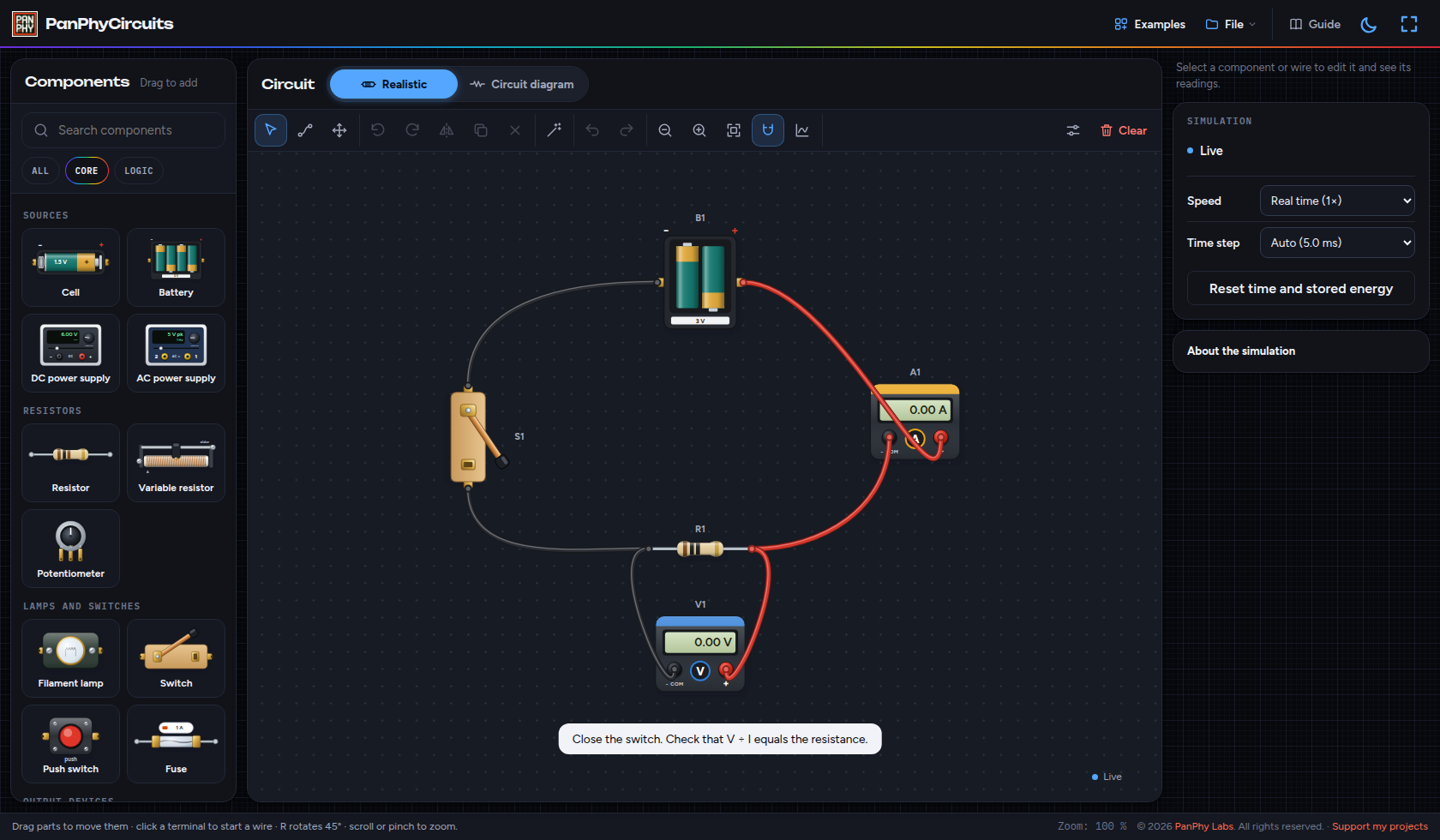
- Choose Examples, then Ammeter and voltmeter connections. Opening an example replaces the current circuit (you can Undo).
- Find Components on the left, the Circuit canvas in the middle, and the inspector cards on the right.
A realistic bench layout with a cell, lamp, switch, ammeter and voltmeter. Readings update live; conventional current shows as yellow dashes when the switch is closed.
 Enlarge screenshot
 Enlarge screenshot
Step 2 of 5
Operate the circuit
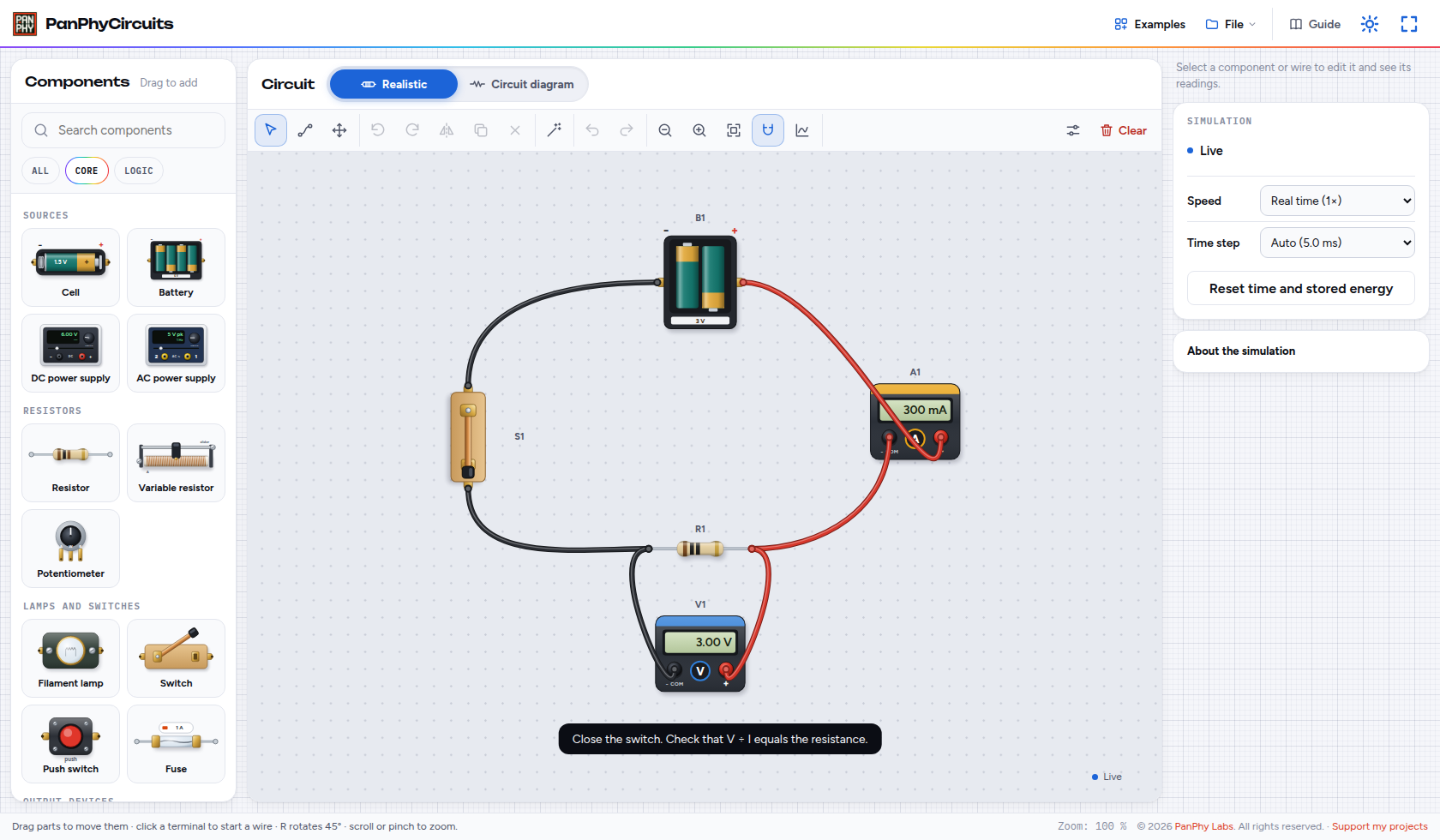
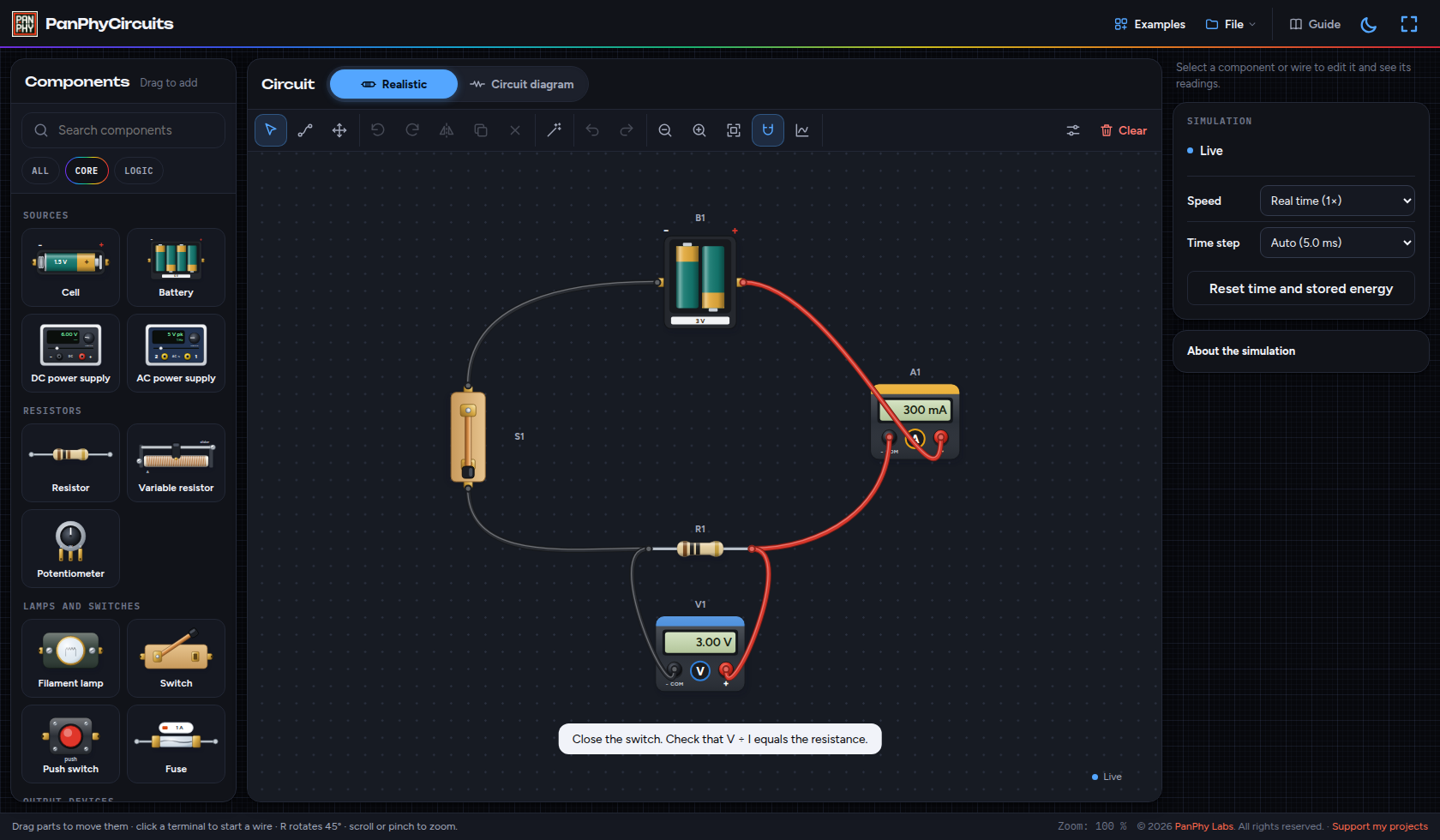
- Click the switch lever to open or close the circuit.
- Drag a rheostat slider or potentiometer knob when those parts are present. Hold a push button to close it momentarily.
- When a circuit changes over time (capacitors, inductors, AC, scope or graph), a Pause control appears at the bottom right of the canvas.
The lamp brightness and meter faces follow the switch. Current animation freezes while paused; Resume continues from that moment.
 Enlarge screenshot
 Enlarge screenshot
Step 3 of 5
Read the meters
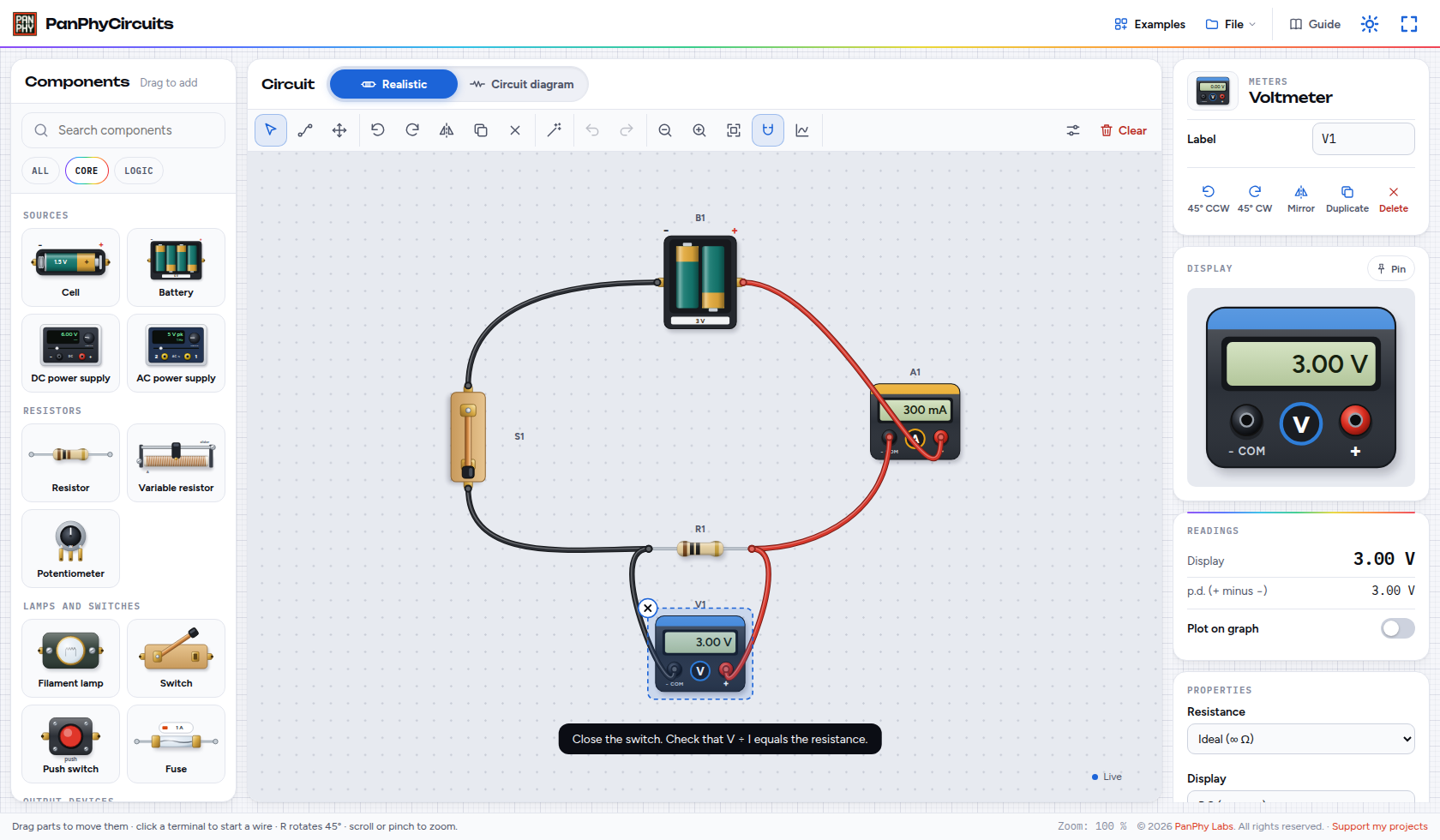
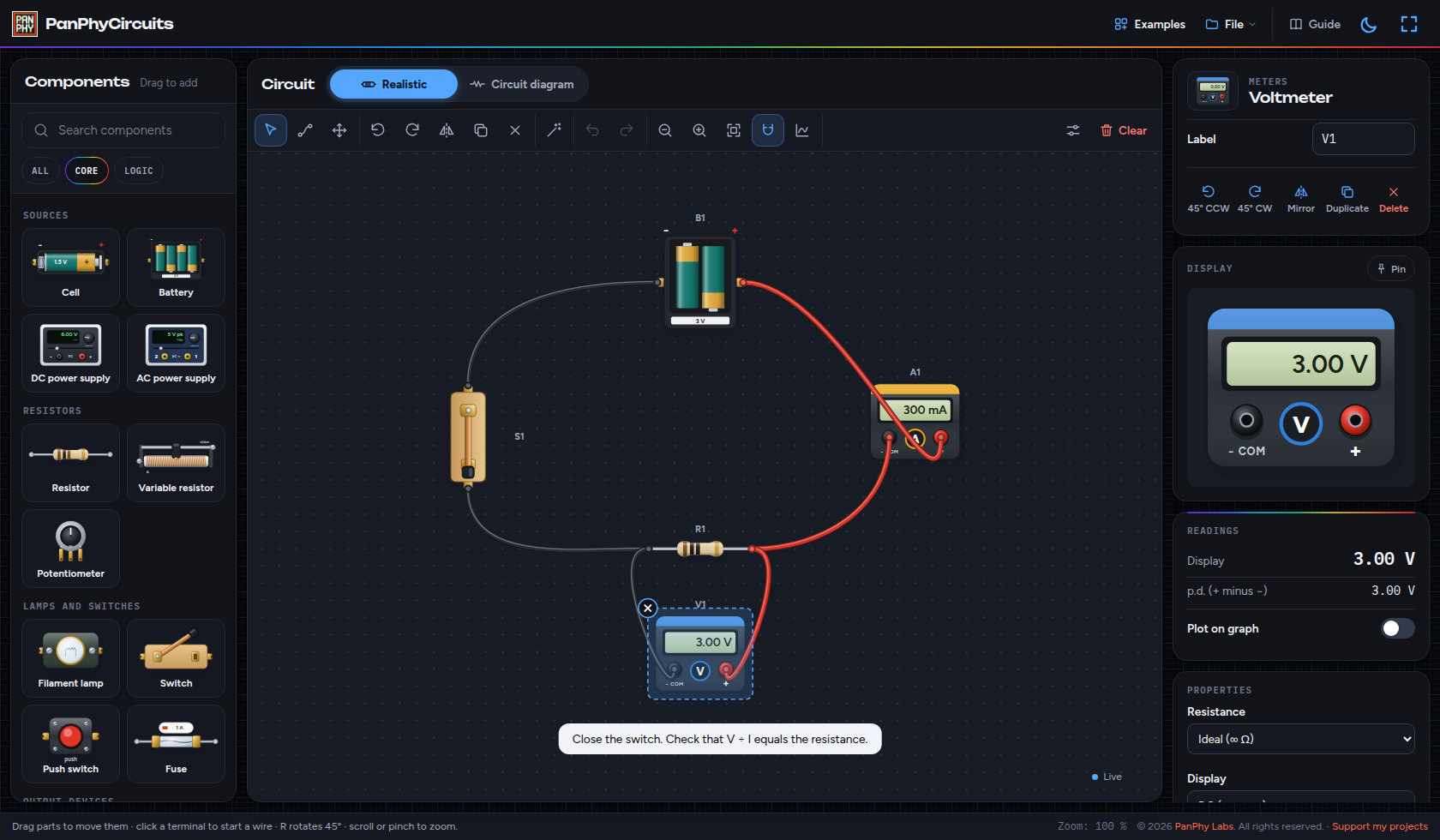
- Click the ammeter or voltmeter. Its display appears large in the inspector.
- Choose Pin to keep that display while you select other parts.
- Right-click a component (or touch and hold) for compact settings. Open Graph to plot meters or oscilloscope channels against time.
Live current and potential difference with three significant figures. Orange glow and a note appear if a meter is wired so it cannot measure.
 Enlarge screenshot
 Enlarge screenshot
Step 4 of 5
Switch to the diagram
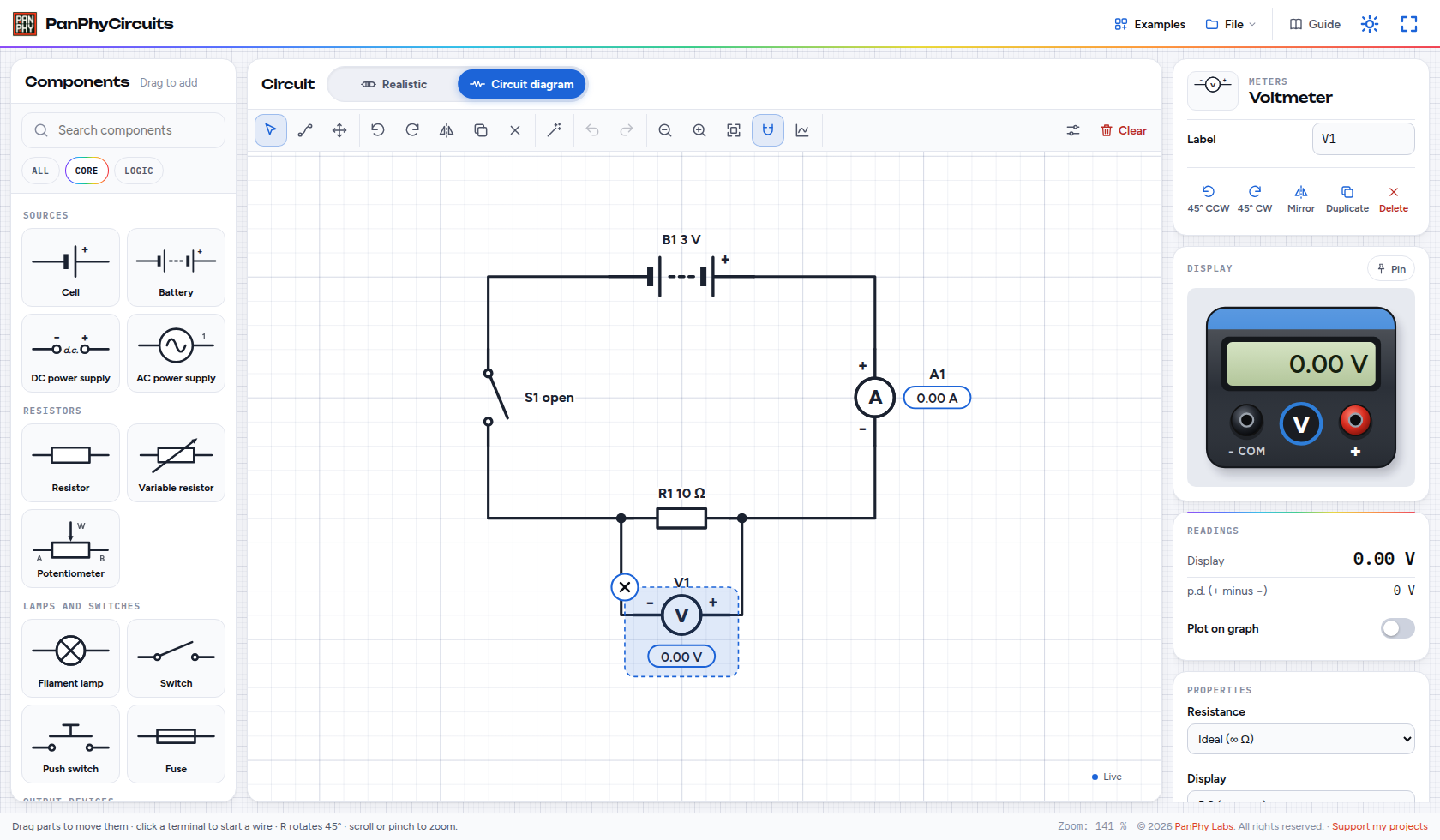
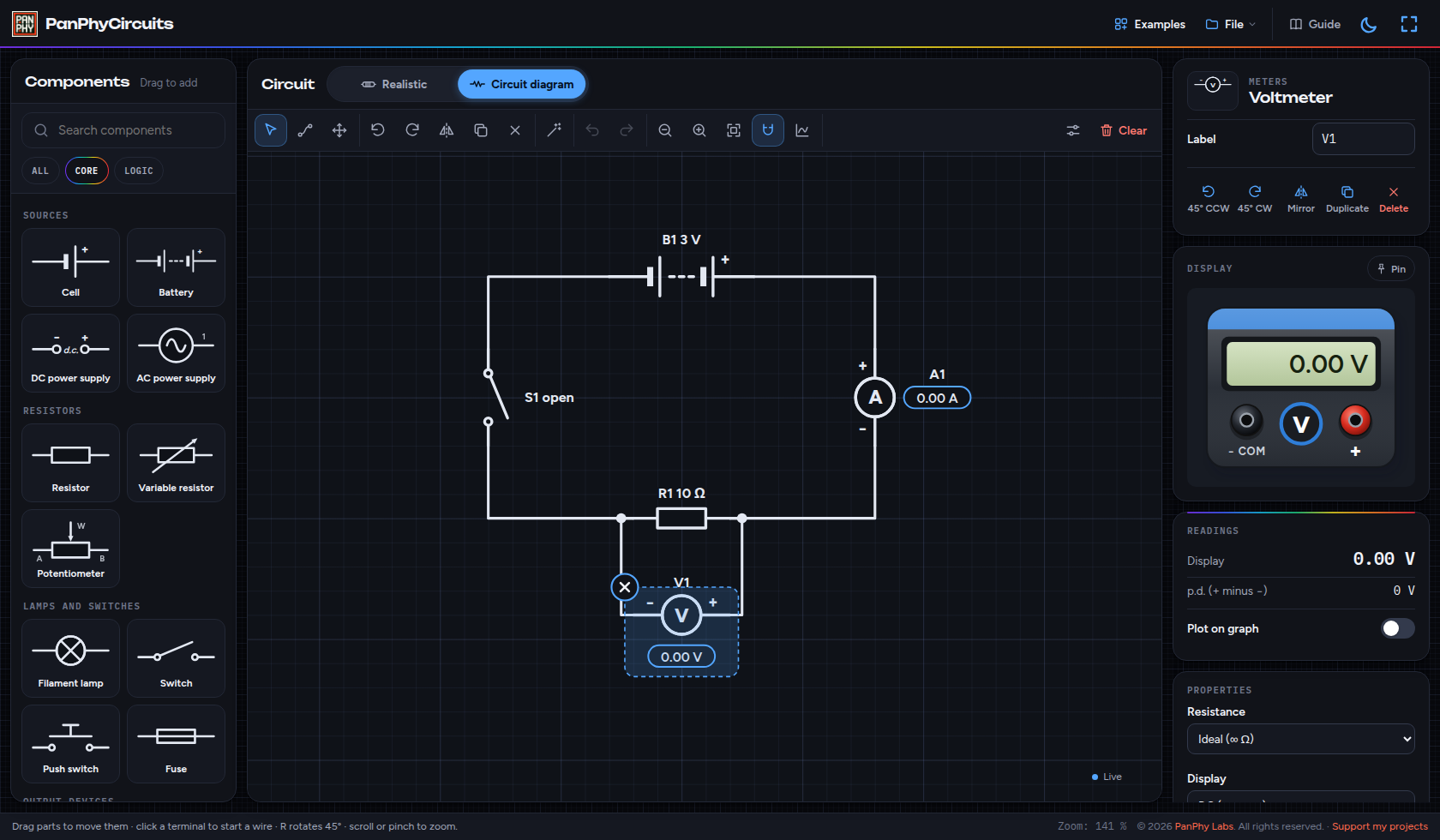
- In the Circuit pane heading, switch from Realistic to Circuit diagram (or press 2).
- Connections stay the same; each view keeps its own layout. New parts appear in both.
- Use Tidy up if you want a textbook arrangement in the current view only. Undo restores the previous layout.
Standard symbols for the same circuit. Switching views never resets simulation time or meter readings.
 Enlarge screenshot
 Enlarge screenshot
Step 5 of 5
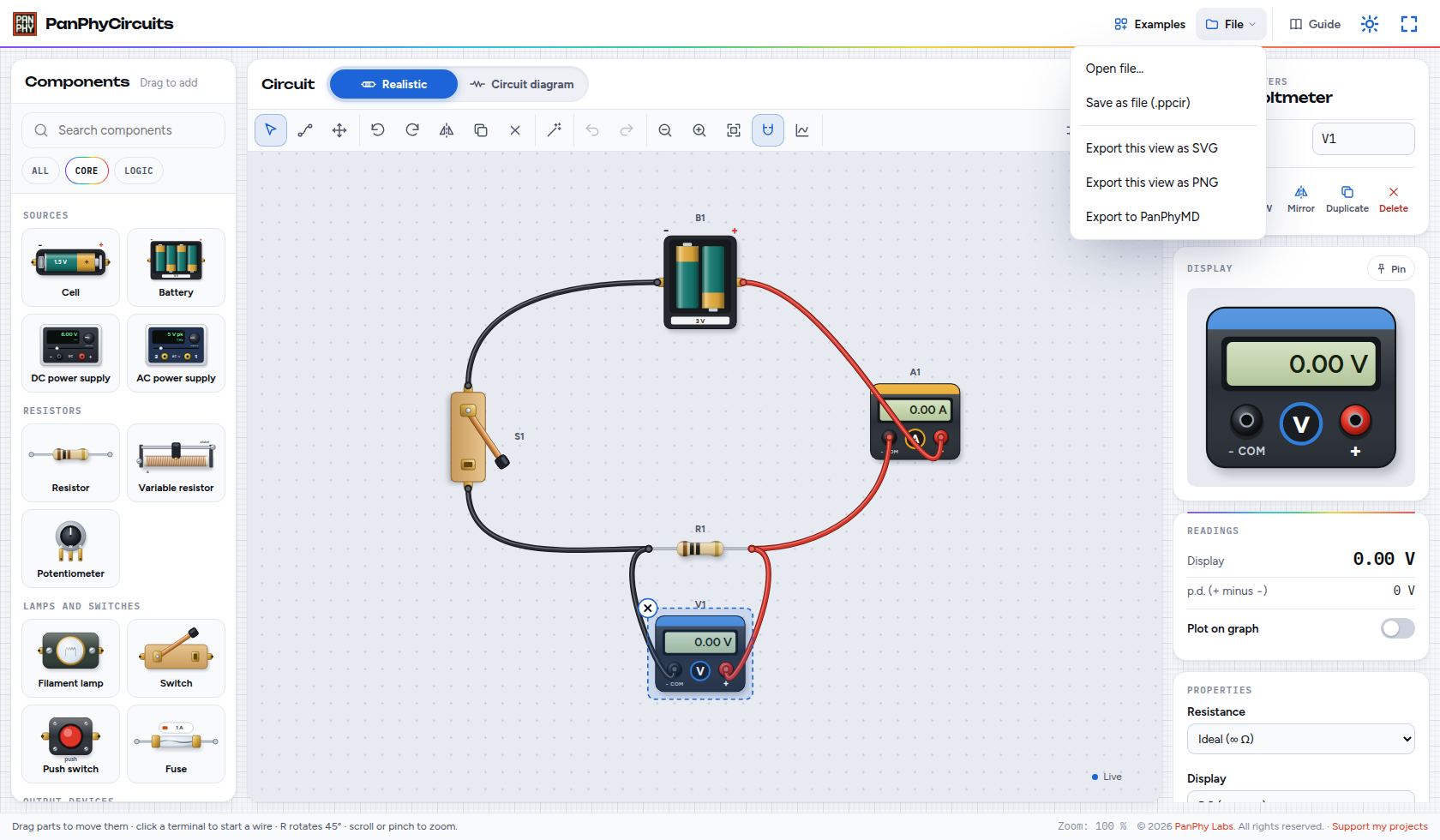
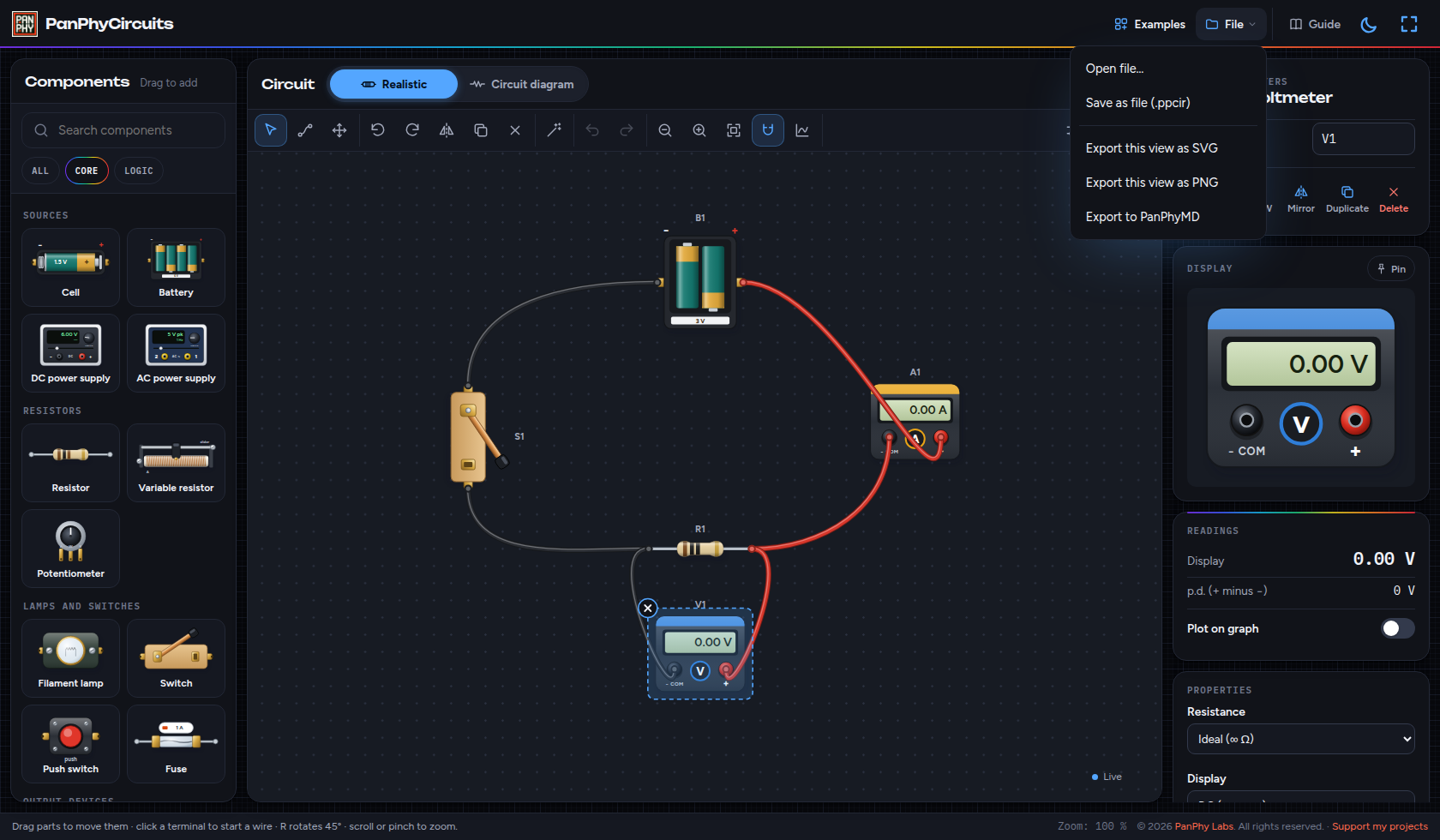
Save or export
- Your circuit autosaves in this browser. Use File → Save as file for a
.ppciryou can move to another device. - File → Export this view as SVG or PNG captures the current view with theme and readings.
- Export to PanPhyMD embeds the view in a notes draft. With Graph open and the simulation paused, export samples to CSV or PanPhyPlot.
A downloadable .ppcir holding the circuit and both layouts, without live simulation state — reopen it and it runs live again.
 Enlarge screenshot
 Enlarge screenshot
Reference
Building your own circuits, wiring rules, graphs and classroom notes.
Build your own
- Drag a card from Components, or click a card and then the canvas. Shift-click to place several. Enter on a focused card places it in the middle.
- Click one terminal, then another to wire. Click empty space along the way to add a bend. Right-click or Esc cancels.
- Click an existing wire to join it with a junction. Double-click to end a wire at a free point. Drag a round wire end onto another terminal to reconnect.
- The library filters are All, Core and Logic. Parts outside Core (capacitors, inductors, transistors, gates, ohmmeter and more) are still available from All or search.
Two views, one circuit
- Realistic and Circuit diagram share connections but keep their own positions, rotations and wire bends.
- Connectivity is explicit: wire ends name a component terminal; geometry never invents a join.
- Tidy up rearranges only the current view. Clear removes every part and wire from both views (undoable).
Meters, graph and oscilloscope
- Opening Graph enables “Plot on graph” for selected meters or scopes, or for all of them if none is selected and none is plotted yet.
- Hover over the graph to mark the nearest sample and read its time and values. Drag across the graph to select a time range for viewing and export. Full Graph restores the entire recording. Pause while the graph is open to show Export CSV and Export to PanPhyPlot for the displayed range.
- New oscilloscopes start with Auto scale and Auto time base on. Turn either off for manual volts/div or time/div.
- The ohmmeter (outside Core) drives at most 1 mA. Use it with no live supply between its leads; OL means open circuit.
Classroom notes
- Free, browser-based, no install — works on school Chromebooks. Offline after the first visit when the homepage shows Offline ready.
- Models are educational: ideal wires and ideal meters, three significant figures, no thermal lag or magnetic saturation. Each component’s inspector explains its model.
- Short circuits and conflicting ideal sources produce errors. Potential difference between separate networks is undefined.
Keyboard
| Keys | Action |
|---|---|
| V / W / H | Select, wire, pan tools |
| R / Shift+R | Rotate 45° clockwise / counterclockwise |
| M | Mirror selection |
| Ctrl+C / Ctrl+V | Copy / paste selected components and their connecting wires (Command also works on Mac) |
| Del | Delete selection |
| Ctrl+Z / Ctrl+Shift+Z | Undo / redo |
| Space | Pause / resume simulation |
| 1 / 2 | Realistic / circuit diagram |
| + / − / 0 | Zoom in / out / fit |